
Docs/History & record linking/Transfer Old Messages Between Records

Transfer Old Messages Between Records

A common use case is converting a lead into a contact or opportunity while pushing the lead's message history into the newly converted record at the same time.

Last updated 28 Nov 2025
Before setting this up, it helps to understand how messages are stored and linked to records.

Each incoming and outgoing message is stored in the Message Bucket object in Salesforce.

The Message Bucket stores the related Salesforce record ID in its Related To field, and Salesforce automatically fills in the Message Bucket's own lookup field for that record type at the same time.

You may also see other lookup fields on the Message Bucket, such as Contact, Lead, Opportunity, and Account. You can even create a lookup field to any other object in Salesforce.

If a Message Bucket is linked to, for example, Contact A, the mini chat console shows those messages on Contact A's record.

The same Message Bucket record can be linked to more than one lookup record at once, so it shows up on every record it is linked to. For example, if one Message Bucket is linked to both a lead and a contact, that same message appears on the lead's record and on the contact's record.

This article queries all the messages related to a lead, then updates the Related To field and the contact lookup with the newly created record.

Move Messages from a Converted Lead to Its Opportunity

Note: run your flow asynchronously.

  1. Create the flow. Build a new flow on the Lead object.
  2. Set the trigger. Configure the trigger to run when A record is updated.
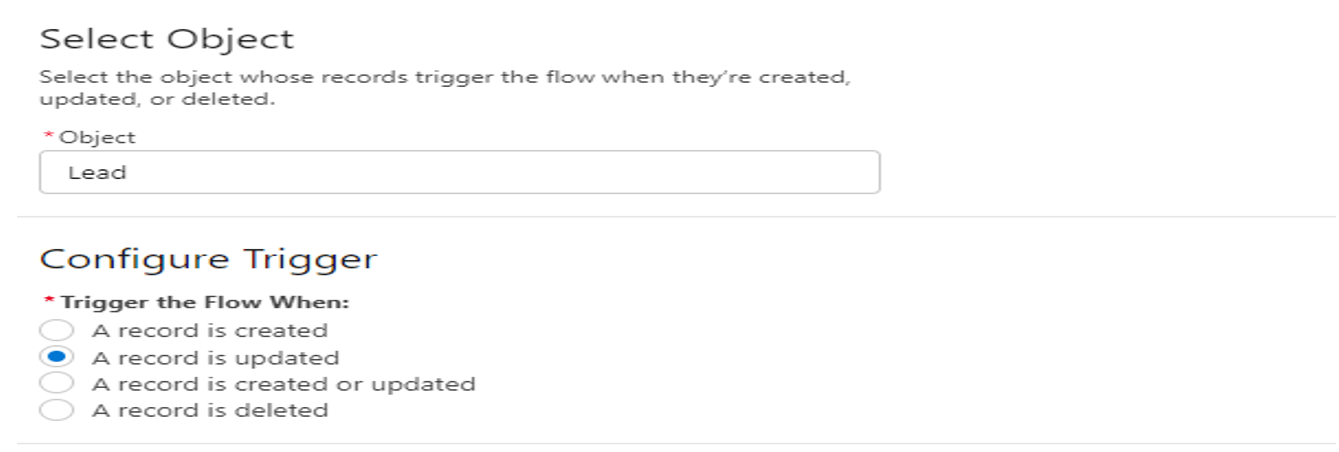
    Salesforce Flow Builder's Select Object and Configure Trigger screens, showing Lead chosen as the object and A record is updated selected as the trigger condition.
    Fig 01
  3. Set the entry conditions. Enter the conditions shown below, then click Done.
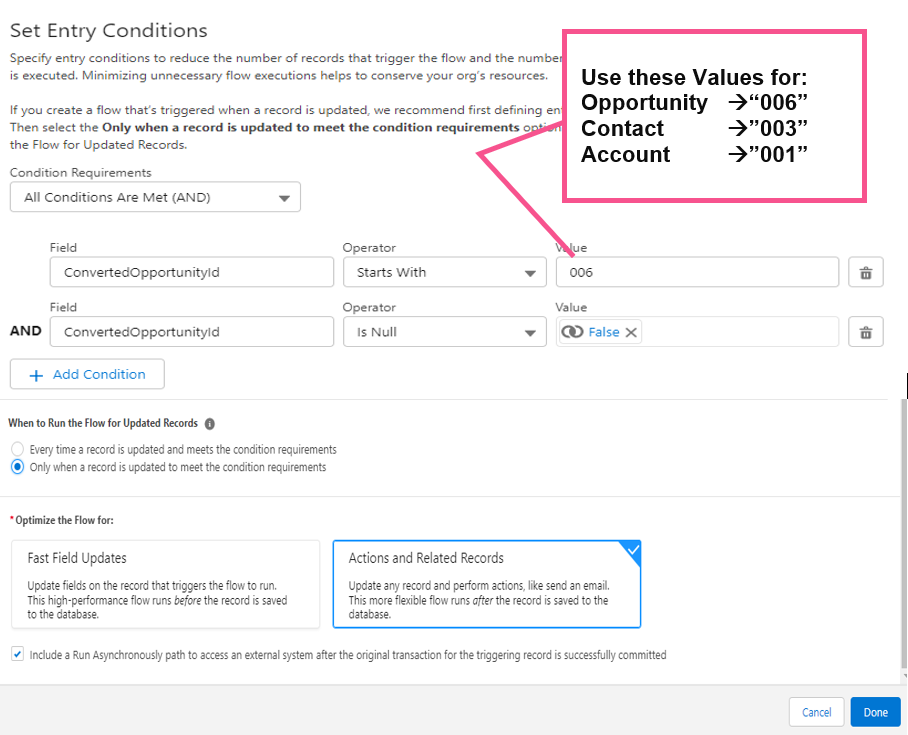
    Salesforce Flow Builder's Set Entry Conditions screen, with ConvertedOpportunityId set to Starts With 006 and Is Null set to False, Only when a record is updated to meet the condition requirements selected, and Actions and Related Records chosen with the Run Asynchronously path enabled, alongside an annotation noting the ID prefixes 006 for Opportunity, 003 for Contact, and 001 for Account.
    Fig 02
  4. Get the converted Opportunity record. Add a Get Records element and match the ID of the current record to the converted Opportunity ID. Click Done.
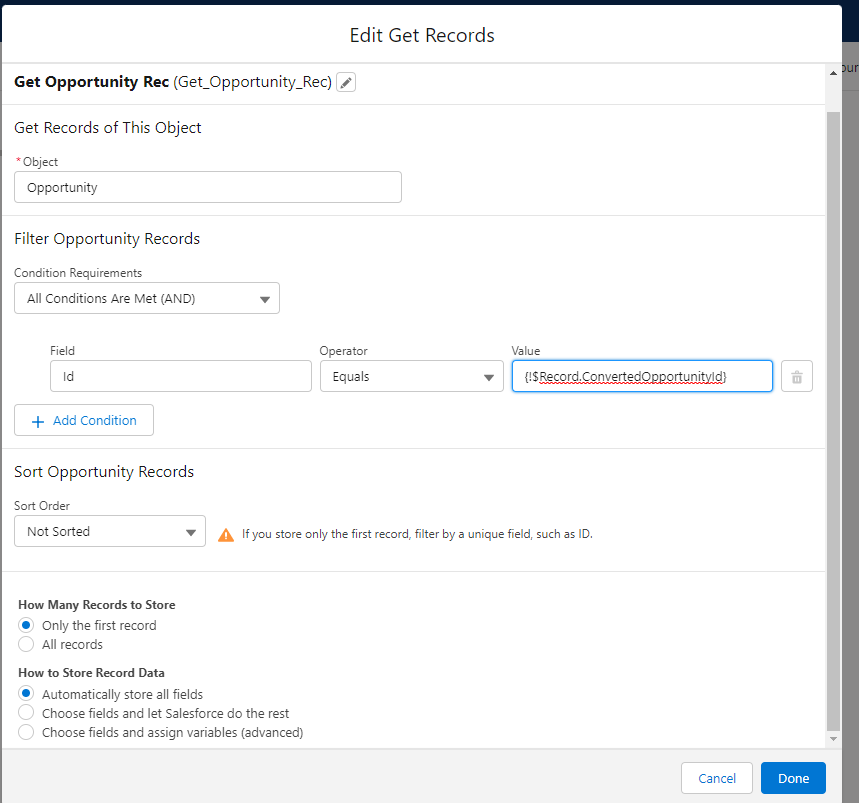
    Salesforce Flow Builder's Edit Get Records screen for the Get Opportunity Rec element, set to the Opportunity object with a filter matching Id to {!$Record.ConvertedOpportunityId} and Automatically store all fields selected.
    Fig 03
  5. Get the related Message Bucket records. Add another Get Records element to the flow, as shown below.
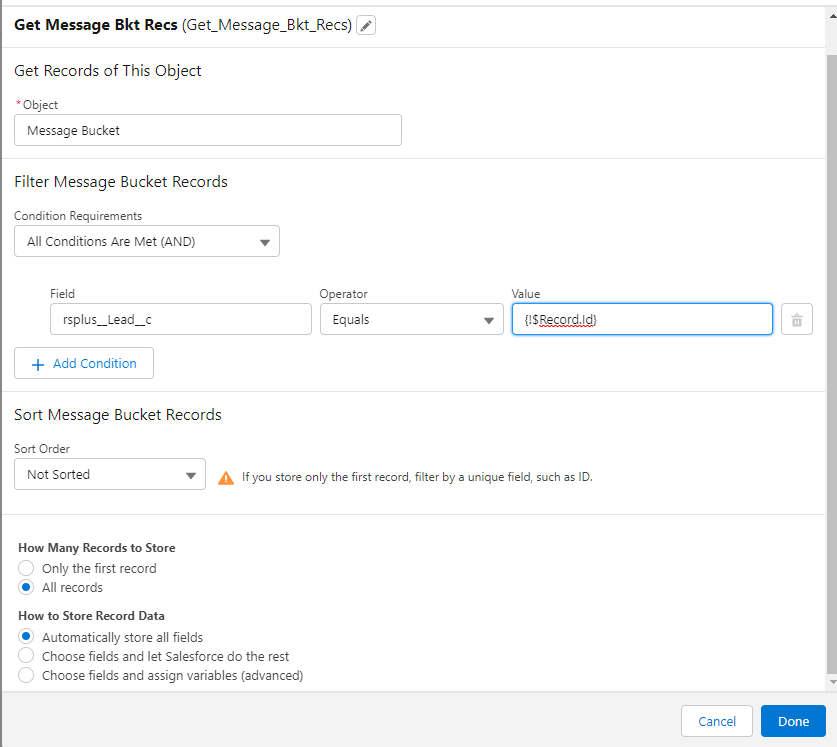
    Salesforce Flow Builder's Edit Get Records screen for the Get Message Bkt Recs element, set to the Message Bucket object with a filter matching rsplus__Lead_c to {!$Record.Id} and All records selected under How Many Records to Store.
    Fig 04
  6. Add a loop. Add a Loop element to the flow, following the image below. Click Done.
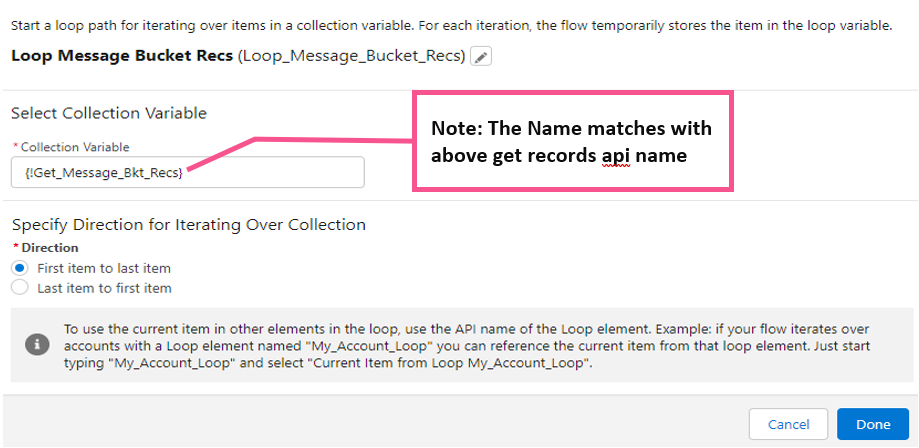
    Salesforce Flow Builder's Loop element configuration for Loop Message Bucket Recs, with the Collection Variable set to {!Get_Message_Bkt_Recs} and First item to last item selected as the iteration direction.
    Fig 05
  7. Update the records inside the loop. Add an Update Records element inside the loop, as shown below. Click Done.
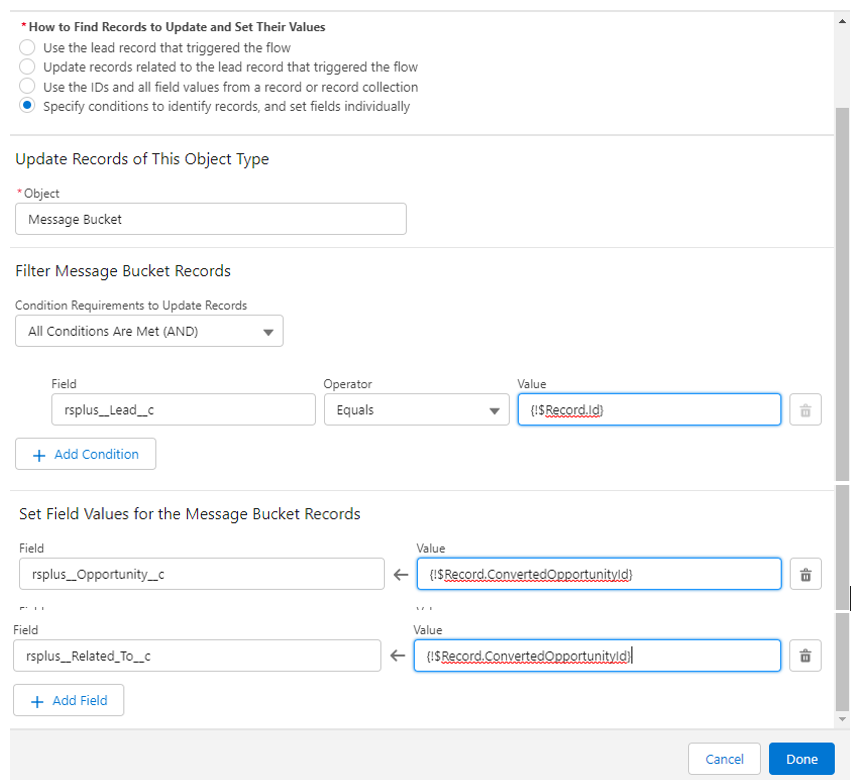
    Salesforce Flow Builder's Update Records screen for the Message Bucket object, filtering on rsplus__Lead_c equals {!$Record.Id} and setting rsplus__Opportunity_c and rsplus__Related_To_c to {!$Record.ConvertedOpportunityId}.
    Fig 06

This is how the finished flow looks:
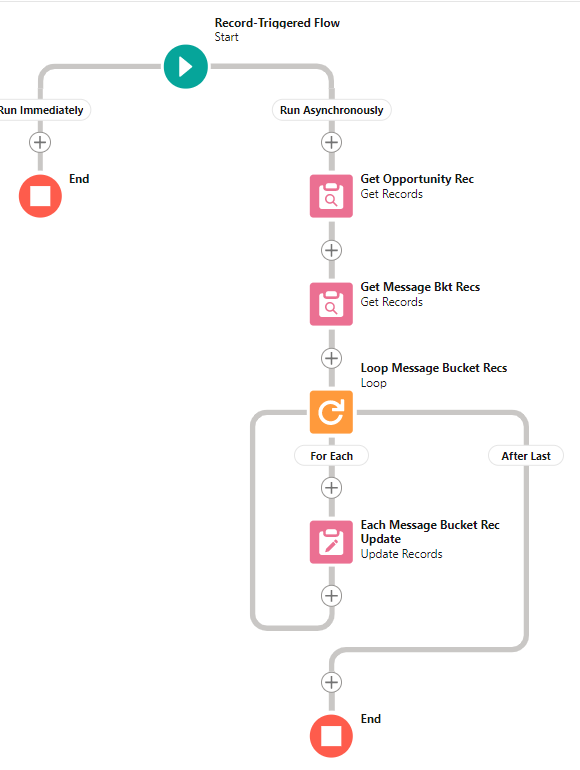
Salesforce Flow Builder canvas showing the finished record-triggered flow, with a Run Asynchronously path running from Get Opportunity Rec through Get Message Bkt Recs into a loop that updates each Message Bucket record before ending.
Fig 07
Was this helpful?
← PreviousLog Chat Conversations to Activity History Next →Record Linking for First Incoming Messages
Docs/History & record linking/Transfer Old Messages Between Records

Transfer Old Messages Between Records

A common use case is converting a lead into a contact or opportunity while pushing the lead's message history into the newly converted record at the same time.

Last updated 28 Nov 2025
Before setting this up, it helps to understand how messages are stored and linked to records.

Each incoming and outgoing message is stored in the Message Bucket object in Salesforce.

The Message Bucket stores the related Salesforce record ID in its Related To field, and Salesforce automatically fills in the Message Bucket's own lookup field for that record type at the same time.

You may also see other lookup fields on the Message Bucket, such as Contact, Lead, Opportunity, and Account. You can even create a lookup field to any other object in Salesforce.

If a Message Bucket is linked to, for example, Contact A, the mini chat console shows those messages on Contact A's record.

The same Message Bucket record can be linked to more than one lookup record at once, so it shows up on every record it is linked to. For example, if one Message Bucket is linked to both a lead and a contact, that same message appears on the lead's record and on the contact's record.

This article queries all the messages related to a lead, then updates the Related To field and the contact lookup with the newly created record.

Move Messages from a Converted Lead to Its Opportunity

Note: run your flow asynchronously.

  1. Create the flow. Build a new flow on the Lead object.
  2. Set the trigger. Configure the trigger to run when A record is updated.
    Salesforce Flow Builder's Select Object and Configure Trigger screens, showing Lead chosen as the object and A record is updated selected as the trigger condition.
    Fig 01
  3. Set the entry conditions. Enter the conditions shown below, then click Done.
    Salesforce Flow Builder's Set Entry Conditions screen, with ConvertedOpportunityId set to Starts With 006 and Is Null set to False, Only when a record is updated to meet the condition requirements selected, and Actions and Related Records chosen with the Run Asynchronously path enabled, alongside an annotation noting the ID prefixes 006 for Opportunity, 003 for Contact, and 001 for Account.
    Fig 02
  4. Get the converted Opportunity record. Add a Get Records element and match the ID of the current record to the converted Opportunity ID. Click Done.
    Salesforce Flow Builder's Edit Get Records screen for the Get Opportunity Rec element, set to the Opportunity object with a filter matching Id to {!$Record.ConvertedOpportunityId} and Automatically store all fields selected.
    Fig 03
  5. Get the related Message Bucket records. Add another Get Records element to the flow, as shown below.
    Salesforce Flow Builder's Edit Get Records screen for the Get Message Bkt Recs element, set to the Message Bucket object with a filter matching rsplus__Lead_c to {!$Record.Id} and All records selected under How Many Records to Store.
    Fig 04
  6. Add a loop. Add a Loop element to the flow, following the image below. Click Done.
    Salesforce Flow Builder's Loop element configuration for Loop Message Bucket Recs, with the Collection Variable set to {!Get_Message_Bkt_Recs} and First item to last item selected as the iteration direction.
    Fig 05
  7. Update the records inside the loop. Add an Update Records element inside the loop, as shown below. Click Done.
    Salesforce Flow Builder's Update Records screen for the Message Bucket object, filtering on rsplus__Lead_c equals {!$Record.Id} and setting rsplus__Opportunity_c and rsplus__Related_To_c to {!$Record.ConvertedOpportunityId}.
    Fig 06

This is how the finished flow looks:

Salesforce Flow Builder canvas showing the finished record-triggered flow, with a Run Asynchronously path running from Get Opportunity Rec through Get Message Bkt Recs into a loop that updates each Message Bucket record before ending.
Fig 07
Was this helpful?
← PreviousLog Chat Conversations to Activity History Next →Record Linking for First Incoming Messages
Docs/History & record linking/Transfer Old Messages Between Records

Transfer Old Messages Between Records

A common use case is converting a lead into a contact or opportunity while pushing the lead's message history into the newly converted record at the same time.

Last updated 28 Nov 2025
Before setting this up, it helps to understand how messages are stored and linked to records.

Each incoming and outgoing message is stored in the Message Bucket object in Salesforce.

The Message Bucket stores the related Salesforce record ID in its Related To field, and Salesforce automatically fills in the Message Bucket's own lookup field for that record type at the same time.

You may also see other lookup fields on the Message Bucket, such as Contact, Lead, Opportunity, and Account. You can even create a lookup field to any other object in Salesforce.

If a Message Bucket is linked to, for example, Contact A, the mini chat console shows those messages on Contact A's record.

The same Message Bucket record can be linked to more than one lookup record at once, so it shows up on every record it is linked to. For example, if one Message Bucket is linked to both a lead and a contact, that same message appears on the lead's record and on the contact's record.

This article queries all the messages related to a lead, then updates the Related To field and the contact lookup with the newly created record.

Move Messages from a Converted Lead to Its Opportunity

Note: run your flow asynchronously.

  1. Create the flow. Build a new flow on the Lead object.
  2. Set the trigger. Configure the trigger to run when A record is updated.
    Salesforce Flow Builder's Select Object and Configure Trigger screens, showing Lead chosen as the object and A record is updated selected as the trigger condition.
    Fig 01
  3. Set the entry conditions. Enter the conditions shown below, then click Done.
    Salesforce Flow Builder's Set Entry Conditions screen, with ConvertedOpportunityId set to Starts With 006 and Is Null set to False, Only when a record is updated to meet the condition requirements selected, and Actions and Related Records chosen with the Run Asynchronously path enabled, alongside an annotation noting the ID prefixes 006 for Opportunity, 003 for Contact, and 001 for Account.
    Fig 02
  4. Get the converted Opportunity record. Add a Get Records element and match the ID of the current record to the converted Opportunity ID. Click Done.
    Salesforce Flow Builder's Edit Get Records screen for the Get Opportunity Rec element, set to the Opportunity object with a filter matching Id to {!$Record.ConvertedOpportunityId} and Automatically store all fields selected.
    Fig 03
  5. Get the related Message Bucket records. Add another Get Records element to the flow, as shown below.
    Salesforce Flow Builder's Edit Get Records screen for the Get Message Bkt Recs element, set to the Message Bucket object with a filter matching rsplus__Lead_c to {!$Record.Id} and All records selected under How Many Records to Store.
    Fig 04
  6. Add a loop. Add a Loop element to the flow, following the image below. Click Done.
    Salesforce Flow Builder's Loop element configuration for Loop Message Bucket Recs, with the Collection Variable set to {!Get_Message_Bkt_Recs} and First item to last item selected as the iteration direction.
    Fig 05
  7. Update the records inside the loop. Add an Update Records element inside the loop, as shown below. Click Done.
    Salesforce Flow Builder's Update Records screen for the Message Bucket object, filtering on rsplus__Lead_c equals {!$Record.Id} and setting rsplus__Opportunity_c and rsplus__Related_To_c to {!$Record.ConvertedOpportunityId}.
    Fig 06

This is how the finished flow looks:

Salesforce Flow Builder canvas showing the finished record-triggered flow, with a Run Asynchronously path running from Get Opportunity Rec through Get Message Bkt Recs into a loop that updates each Message Bucket record before ending.
Fig 07
Was this helpful?
← PreviousLog Chat Conversations to Activity History Next →Record Linking for First Incoming Messages
Docs/History & record linking/Transfer Old Messages Between Records

Transfer Old Messages Between Records

A common use case is converting a lead into a contact or opportunity while pushing the lead's message history into the newly converted record at the same time.

Last updated 28 Nov 2025
Before setting this up, it helps to understand how messages are stored and linked to records.

Each incoming and outgoing message is stored in the Message Bucket object in Salesforce.

The Message Bucket stores the related Salesforce record ID in its Related To field, and Salesforce automatically fills in the Message Bucket's own lookup field for that record type at the same time.

You may also see other lookup fields on the Message Bucket, such as Contact, Lead, Opportunity, and Account. You can even create a lookup field to any other object in Salesforce.

If a Message Bucket is linked to, for example, Contact A, the mini chat console shows those messages on Contact A's record.

The same Message Bucket record can be linked to more than one lookup record at once, so it shows up on every record it is linked to. For example, if one Message Bucket is linked to both a lead and a contact, that same message appears on the lead's record and on the contact's record.

This article queries all the messages related to a lead, then updates the Related To field and the contact lookup with the newly created record.

Move Messages from a Converted Lead to Its Opportunity

Note: run your flow asynchronously.

  1. Create the flow. Build a new flow on the Lead object.
  2. Set the trigger. Configure the trigger to run when A record is updated.
    Salesforce Flow Builder's Select Object and Configure Trigger screens, showing Lead chosen as the object and A record is updated selected as the trigger condition.
    Fig 01
  3. Set the entry conditions. Enter the conditions shown below, then click Done.
    Salesforce Flow Builder's Set Entry Conditions screen, with ConvertedOpportunityId set to Starts With 006 and Is Null set to False, Only when a record is updated to meet the condition requirements selected, and Actions and Related Records chosen with the Run Asynchronously path enabled, alongside an annotation noting the ID prefixes 006 for Opportunity, 003 for Contact, and 001 for Account.
    Fig 02
  4. Get the converted Opportunity record. Add a Get Records element and match the ID of the current record to the converted Opportunity ID. Click Done.
    Salesforce Flow Builder's Edit Get Records screen for the Get Opportunity Rec element, set to the Opportunity object with a filter matching Id to {!$Record.ConvertedOpportunityId} and Automatically store all fields selected.
    Fig 03
  5. Get the related Message Bucket records. Add another Get Records element to the flow, as shown below.
    Salesforce Flow Builder's Edit Get Records screen for the Get Message Bkt Recs element, set to the Message Bucket object with a filter matching rsplus__Lead_c to {!$Record.Id} and All records selected under How Many Records to Store.
    Fig 04
  6. Add a loop. Add a Loop element to the flow, following the image below. Click Done.
    Salesforce Flow Builder's Loop element configuration for Loop Message Bucket Recs, with the Collection Variable set to {!Get_Message_Bkt_Recs} and First item to last item selected as the iteration direction.
    Fig 05
  7. Update the records inside the loop. Add an Update Records element inside the loop, as shown below. Click Done.
    Salesforce Flow Builder's Update Records screen for the Message Bucket object, filtering on rsplus__Lead_c equals {!$Record.Id} and setting rsplus__Opportunity_c and rsplus__Related_To_c to {!$Record.ConvertedOpportunityId}.
    Fig 06

This is how the finished flow looks:

Salesforce Flow Builder canvas showing the finished record-triggered flow, with a Run Asynchronously path running from Get Opportunity Rec through Get Message Bkt Recs into a loop that updates each Message Bucket record before ending.
Fig 07
Was this helpful?
← PreviousLog Chat Conversations to Activity History Next →Record Linking for First Incoming Messages