Docs/Sending messages/Bulk Text (List View) button configuration

Bulk Text (List View) button configuration

The Bulk Text (List View) button can be configured for any object, including Contact, Account, or a custom object.

Last updated 28 Nov 2025
Installing the ValueText AppExchange package gives you a Send SMS or Bulk SMS button for contacts, accounts, cases, leads, and opportunity objects.

Create the button for a custom object

  1. Log in to Salesforce and go to Setup > Create > Objects.
  2. Select the object you want to create a button for.
  3. In the Buttons, Links and Actions section, click New Button or Link.

Set the button type and behavior

  1. Click List Button.
  2. Set Behavior to "Display in a new window."
  3. Set Content Source to "URL".

Example:

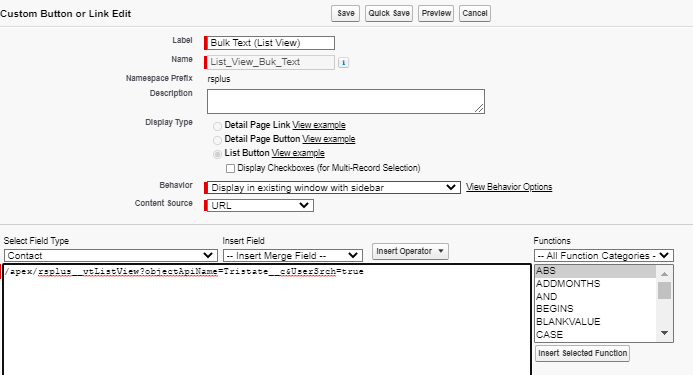
Salesforce Custom Button or Link Edit screen with List Button selected, Behavior set to Display in existing window with sidebar, Content Source set to URL, and the formula window containing /apex/rsplus__vtListView?objectApiName=Tristate__c&UserSrch=true.
Fig 01

Add the formula

Copy and paste the code below into the formula window:

Example
/apex/rsplus__vtListView?objectApiName=<ObjectAPI-Name>&UserSrch=true

Replace ObjectAPI-Name with your custom object's API name. For example, for a contact object, use Contact. Then click Save.

Turn on the button for users

Once saved, add the button from the search layout for Salesforce Classic so users can access it.

Was this helpful?
← PreviousSend Bulk Messages from a CSV File Next →Bulk message job reporting
Docs/Sending messages/Bulk Text (List View) button configuration

Bulk Text (List View) button configuration

The Bulk Text (List View) button can be configured for any object, including Contact, Account, or a custom object.

Last updated 28 Nov 2025
Installing the ValueText AppExchange package gives you a Send SMS or Bulk SMS button for contacts, accounts, cases, leads, and opportunity objects.

Create the button for a custom object

  1. Log in to Salesforce and go to Setup > Create > Objects.
  2. Select the object you want to create a button for.
  3. In the Buttons, Links and Actions section, click New Button or Link.

Set the button type and behavior

  1. Click List Button.
  2. Set Behavior to "Display in a new window."
  3. Set Content Source to "URL".

Example:

Salesforce Custom Button or Link Edit screen with List Button selected, Behavior set to Display in existing window with sidebar, Content Source set to URL, and the formula window containing /apex/rsplus__vtListView?objectApiName=Tristate__c&UserSrch=true.
Fig 01

Add the formula

Copy and paste the code below into the formula window:

Example
/apex/rsplus__vtListView?objectApiName=<ObjectAPI-Name>&UserSrch=true

Replace ObjectAPI-Name with your custom object's API name. For example, for a contact object, use Contact. Then click Save.

Turn on the button for users

Once saved, add the button from the search layout for Salesforce Classic so users can access it.

Was this helpful?
← PreviousSend Bulk Messages from a CSV File Next →Bulk message job reporting
Docs/Sending messages/Bulk Text (List View) button configuration

Bulk Text (List View) button configuration

The Bulk Text (List View) button can be configured for any object, including Contact, Account, or a custom object.

Last updated 28 Nov 2025
Installing the ValueText AppExchange package gives you a Send SMS or Bulk SMS button for contacts, accounts, cases, leads, and opportunity objects.

Create the button for a custom object

  1. Log in to Salesforce and go to Setup > Create > Objects.
  2. Select the object you want to create a button for.
  3. In the Buttons, Links and Actions section, click New Button or Link.

Set the button type and behavior

  1. Click List Button.
  2. Set Behavior to "Display in a new window."
  3. Set Content Source to "URL".

Example:

Salesforce Custom Button or Link Edit screen with List Button selected, Behavior set to Display in existing window with sidebar, Content Source set to URL, and the formula window containing /apex/rsplus__vtListView?objectApiName=Tristate__c&UserSrch=true.
Fig 01

Add the formula

Copy and paste the code below into the formula window:

Example
/apex/rsplus__vtListView?objectApiName=<ObjectAPI-Name>&UserSrch=true

Replace ObjectAPI-Name with your custom object's API name. For example, for a contact object, use Contact. Then click Save.

Turn on the button for users

Once saved, add the button from the search layout for Salesforce Classic so users can access it.

Was this helpful?
← PreviousSend Bulk Messages from a CSV File Next →Bulk message job reporting
Docs/Sending messages/Bulk Text (List View) button configuration

Bulk Text (List View) button configuration

The Bulk Text (List View) button can be configured for any object, including Contact, Account, or a custom object.

Last updated 28 Nov 2025
Installing the ValueText AppExchange package gives you a Send SMS or Bulk SMS button for contacts, accounts, cases, leads, and opportunity objects.

Create the button for a custom object

  1. Log in to Salesforce and go to Setup > Create > Objects.
  2. Select the object you want to create a button for.
  3. In the Buttons, Links and Actions section, click New Button or Link.

Set the button type and behavior

  1. Click List Button.
  2. Set Behavior to "Display in a new window."
  3. Set Content Source to "URL".

Example:

Salesforce Custom Button or Link Edit screen with List Button selected, Behavior set to Display in existing window with sidebar, Content Source set to URL, and the formula window containing /apex/rsplus__vtListView?objectApiName=Tristate__c&UserSrch=true.
Fig 01

Add the formula

Copy and paste the code below into the formula window:

Example
/apex/rsplus__vtListView?objectApiName=<ObjectAPI-Name>&UserSrch=true

Replace ObjectAPI-Name with your custom object's API name. For example, for a contact object, use Contact. Then click Save.

Turn on the button for users

Once saved, add the button from the search layout for Salesforce Classic so users can access it.

Was this helpful?
← PreviousSend Bulk Messages from a CSV File Next →Bulk message job reporting