
Docs/Get started/Set up ValueText inside Salesforce

Set up ValueText inside Salesforce

Install the package, configure your country, select your channel, enable OAuth, and add the Mini Chat Console to your record pages. Everything happens inside Salesforce, nothing external.

Last updated 6 Aug 2026

Install the ValueText package

Install the managed package for your Salesforce org. Choose the correct installation option and wait for the confirmation email from Salesforce.

Installation usually takes 5 to 10 minutes.
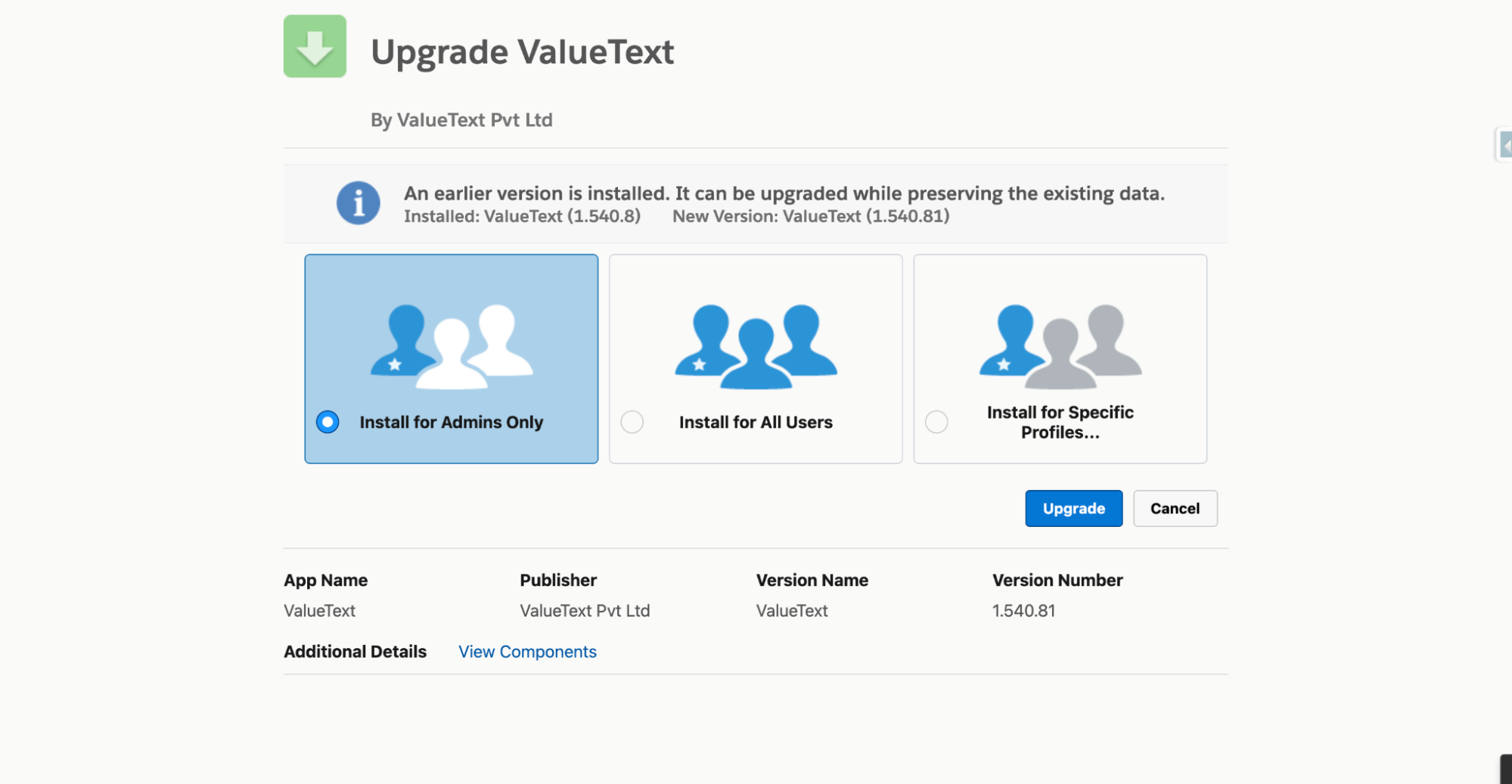
Salesforce package installer screen titled Upgrade ValueText, showing Install for Admins Only selected alongside Install for All Users and Install for Specific Profiles, with an Upgrade button.
Fig 01

Open ValueText Setup

Open the App Launcher, search for ValueText, and open ValueText Setup from the list.
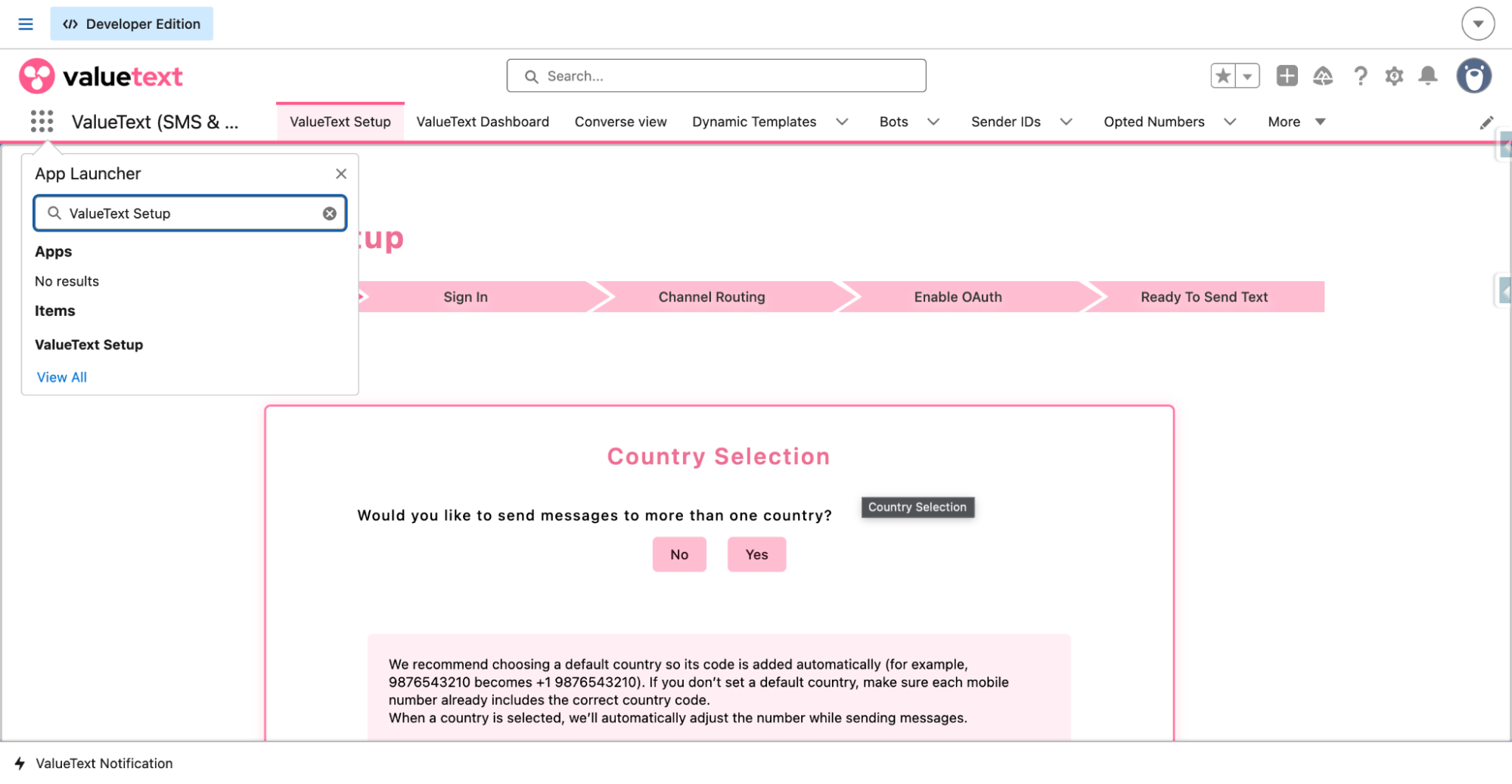
Salesforce App Launcher with
Fig 02

Select your sending country

Choose whether you want to send messages from a single country or enable multi-country messaging.

You can update this setting at any time.
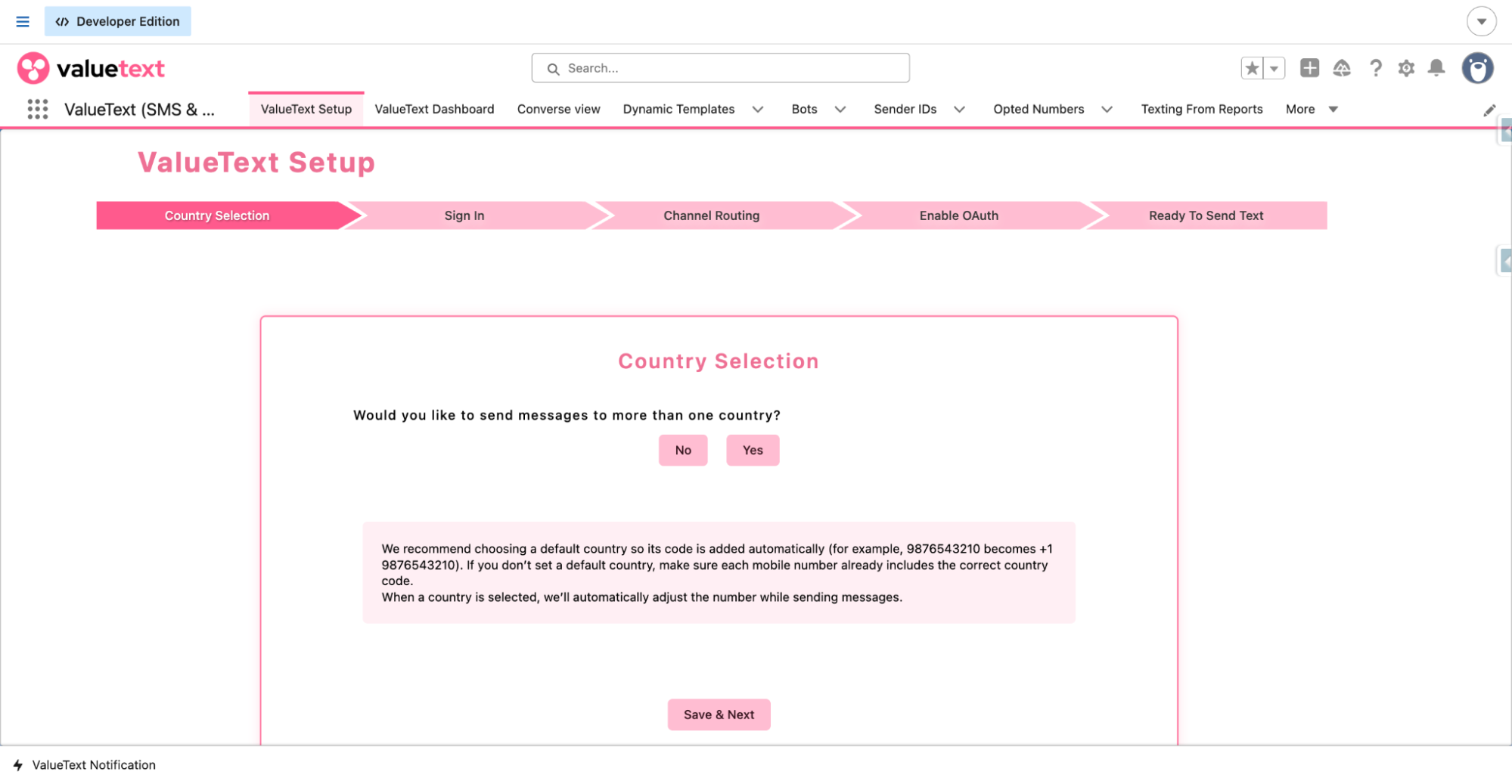
ValueText Setup wizard on the Country Selection step, asking whether to send messages to more than one country, with No and Yes buttons and a Save & Next button.
Fig 03

Create your ValueText account

Enter your name, email, and country to register. You will receive an OTP by email, then set your password.

Your password must include an uppercase letter, a lowercase letter, a number, a special character, and be at least eight characters.
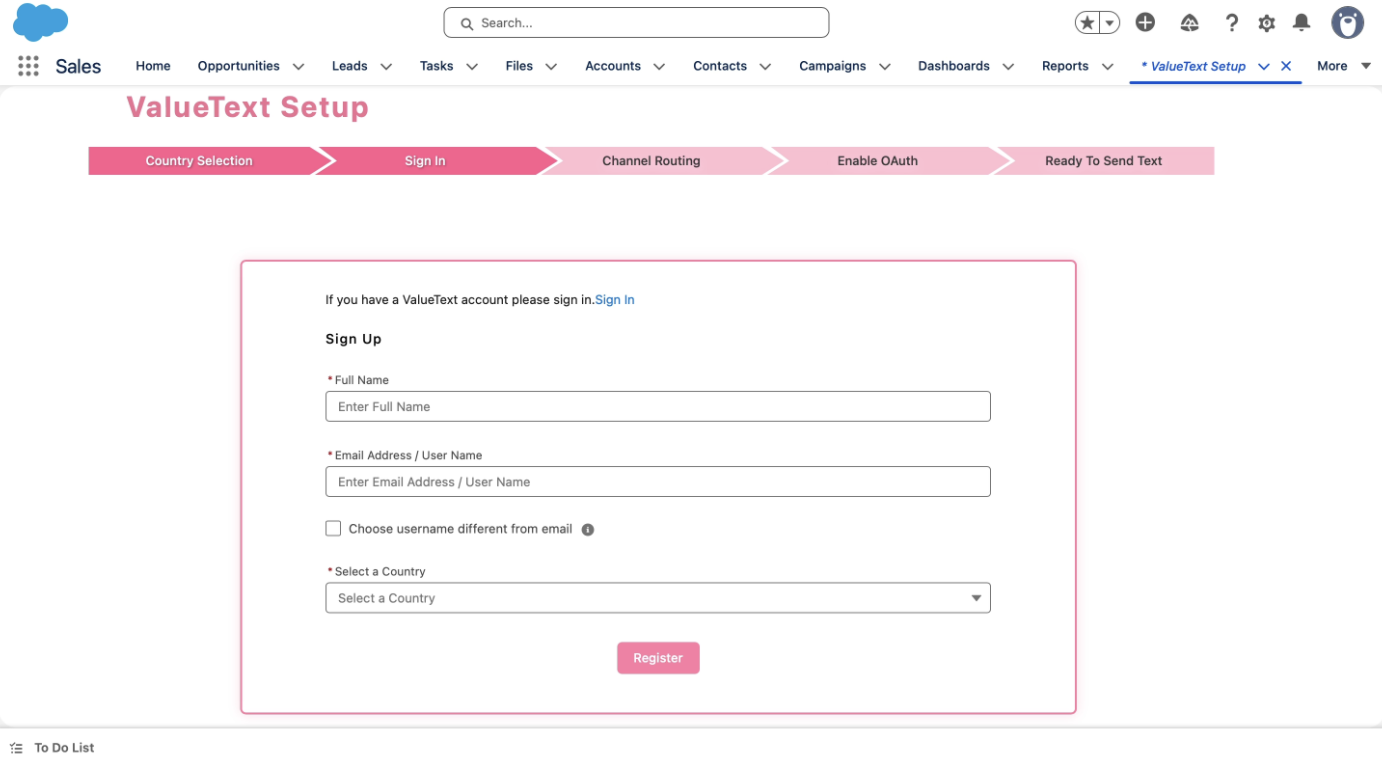
ValueText Setup wizard on the Sign In step, showing the Sign Up form with Full Name, Email Address / User Name, and Select a Country fields and a Register button.
Fig 04

Choose your default channel

Select SMS, WhatsApp, or both. This defines your default messaging behavior inside Salesforce.
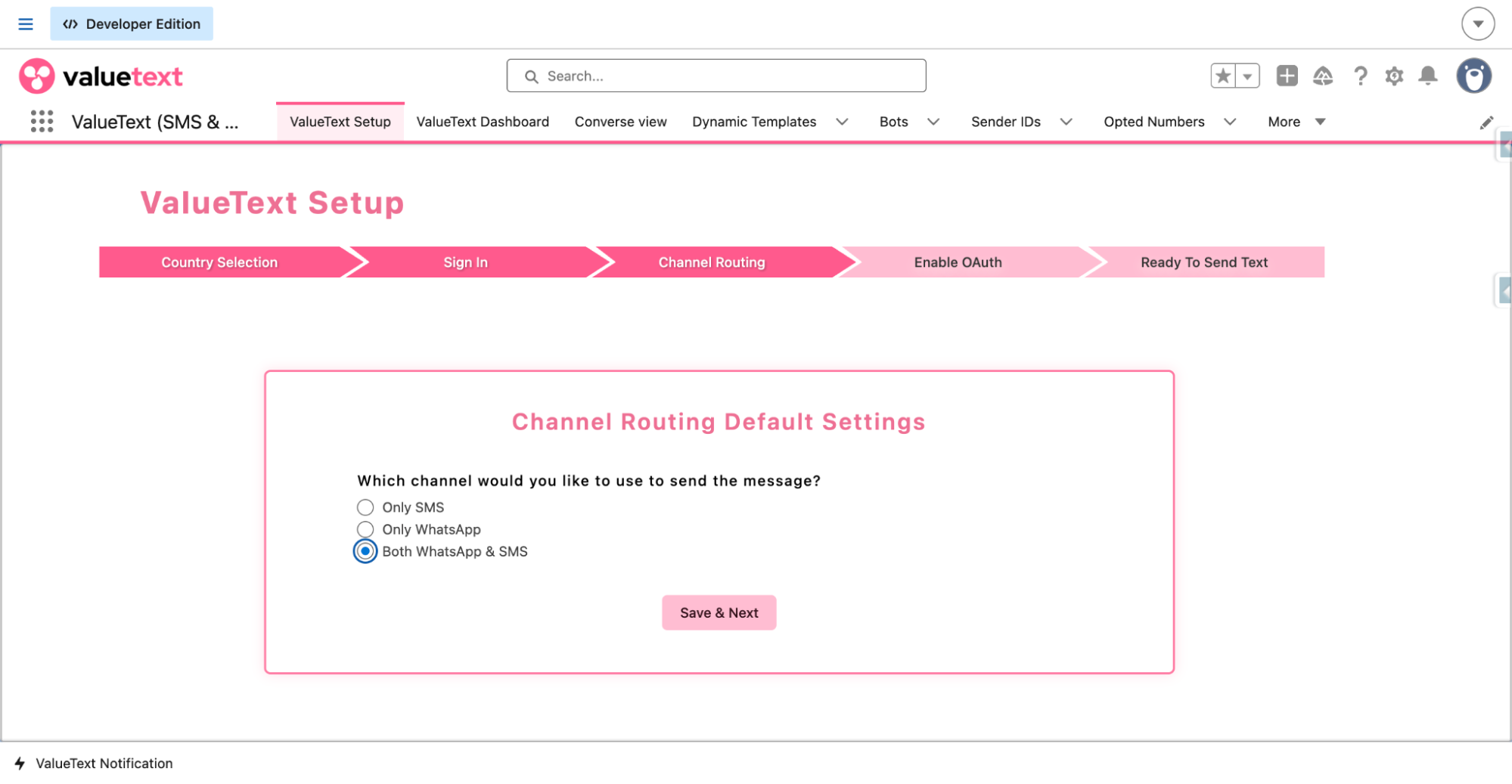
ValueText Setup wizard on the Channel Routing step, showing radio options for Only SMS, Only WhatsApp, and Both WhatsApp & SMS.
Fig 05

Enable OAuth

Click Enable OAuth, log in when prompted, and allow access so ValueText can receive inbound messages securely inside Salesforce.
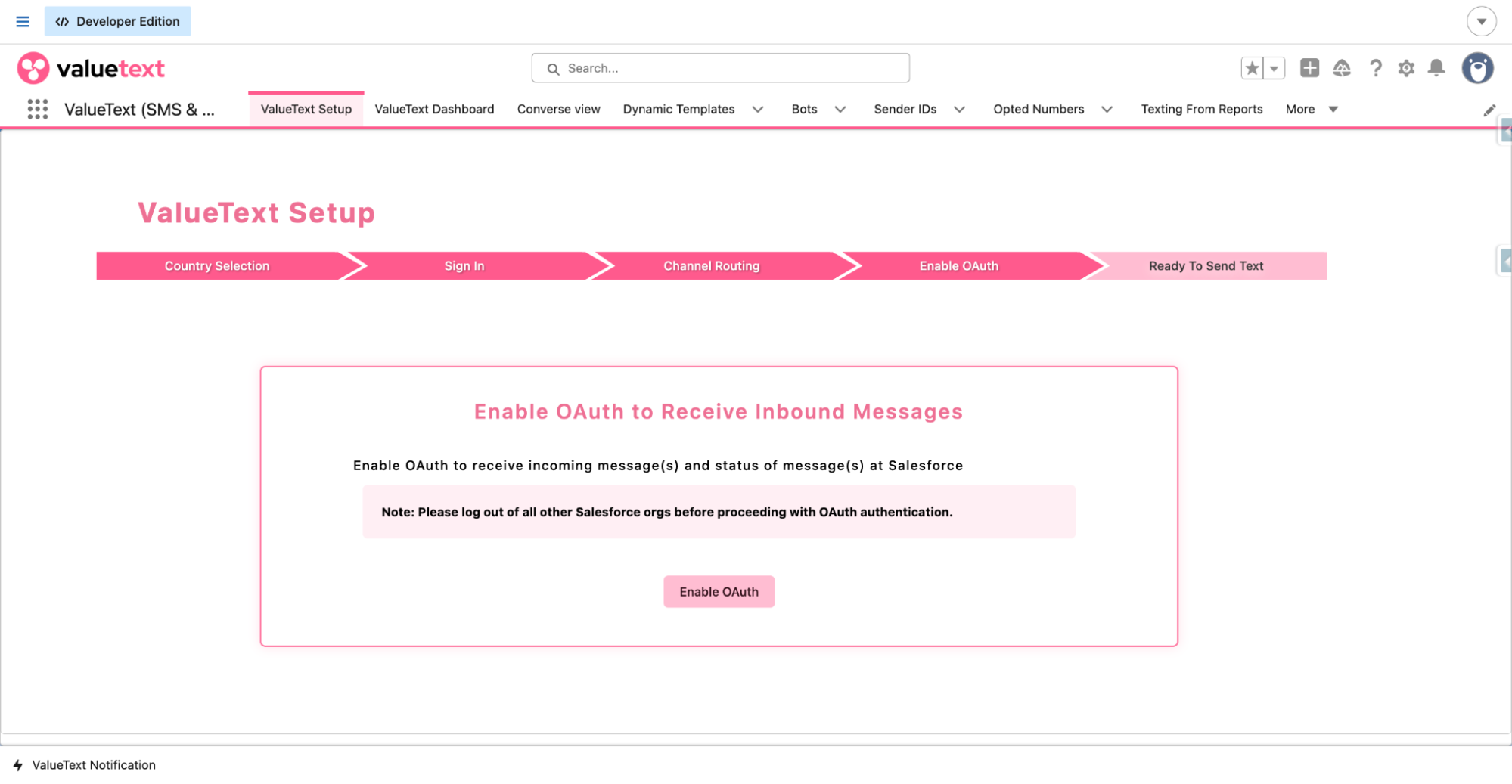
ValueText Setup wizard on the Enable OAuth step, with an Enable OAuth button and a note to log out of all other Salesforce orgs before authenticating.
Fig 06

Add the Mini Chat Console

Open any record, click the gear icon, select Edit Page, search for Chat Window WhatsApp and SMS, and drag it into the layout.

You can add the console to Leads, Contacts, Accounts, Opportunities, and custom objects.
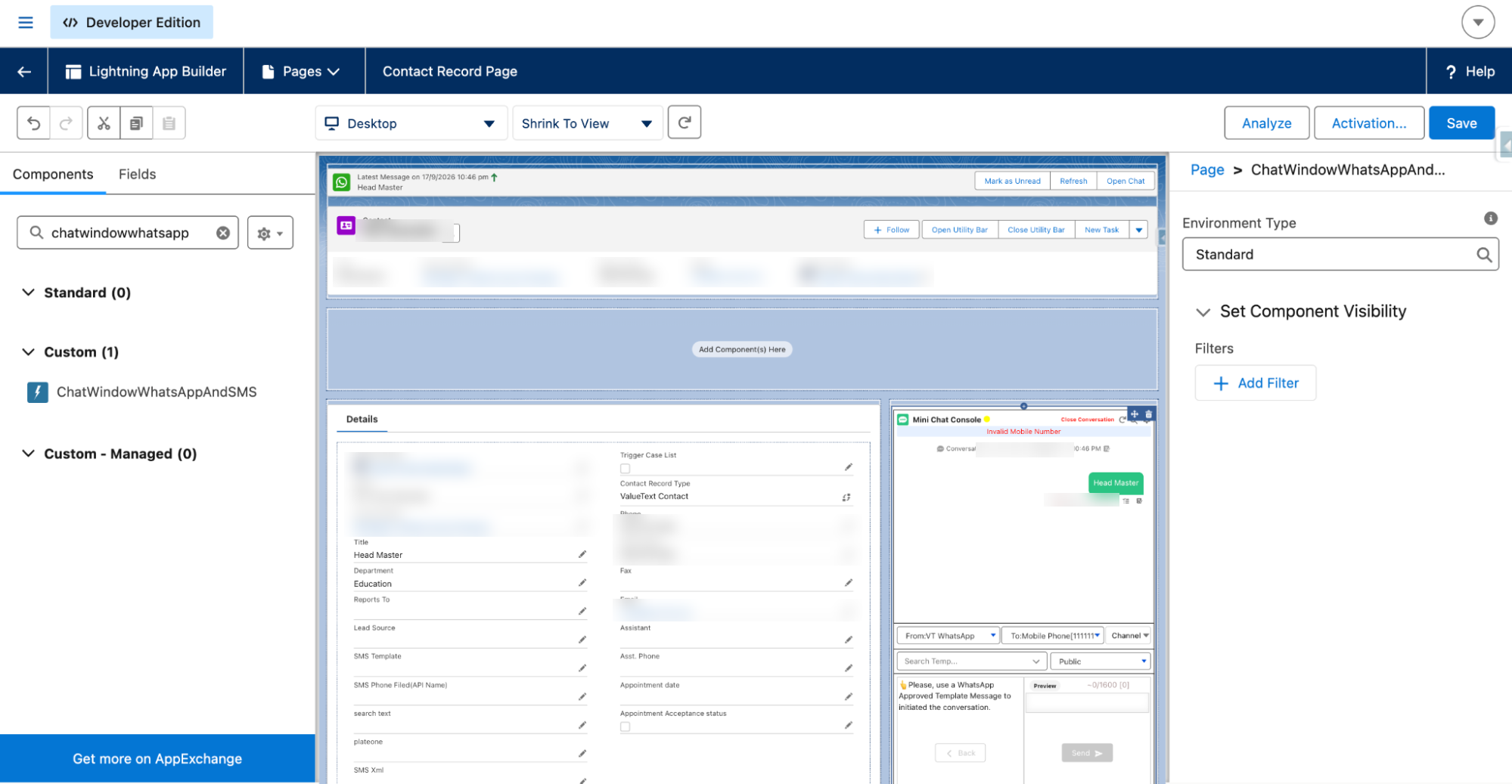
Lightning App Builder editing a Contact record page, with the ChatWindowWhatsAppAndSMS component (Mini Chat Console) placed in the layout beside the record's related list.
Fig 07

Need help? Book a quick setup call.

Was this helpful?
Next →Assign ValueText Permission Set to Users
Docs/Get started/Set up ValueText inside Salesforce

Set up ValueText inside Salesforce

Install the package, configure your country, select your channel, enable OAuth, and add the Mini Chat Console to your record pages. Everything happens inside Salesforce, nothing external.

Last updated 6 Aug 2026

Install the ValueText package

Install the managed package for your Salesforce org. Choose the correct installation option and wait for the confirmation email from Salesforce.

Installation usually takes 5 to 10 minutes.

Salesforce package installer screen titled Upgrade ValueText, showing Install for Admins Only selected alongside Install for All Users and Install for Specific Profiles, with an Upgrade button.
Fig 01

Open ValueText Setup

Open the App Launcher, search for ValueText, and open ValueText Setup from the list.

Salesforce App Launcher with
Fig 02

Select your sending country

Choose whether you want to send messages from a single country or enable multi-country messaging.

You can update this setting at any time.

ValueText Setup wizard on the Country Selection step, asking whether to send messages to more than one country, with No and Yes buttons and a Save & Next button.
Fig 03

Create your ValueText account

Enter your name, email, and country to register. You will receive an OTP by email, then set your password.

Your password must include an uppercase letter, a lowercase letter, a number, a special character, and be at least eight characters.

ValueText Setup wizard on the Sign In step, showing the Sign Up form with Full Name, Email Address / User Name, and Select a Country fields and a Register button.
Fig 04

Choose your default channel

Select SMS, WhatsApp, or both. This defines your default messaging behavior inside Salesforce.

ValueText Setup wizard on the Channel Routing step, showing radio options for Only SMS, Only WhatsApp, and Both WhatsApp & SMS.
Fig 05

Enable OAuth

Click Enable OAuth, log in when prompted, and allow access so ValueText can receive inbound messages securely inside Salesforce.

ValueText Setup wizard on the Enable OAuth step, with an Enable OAuth button and a note to log out of all other Salesforce orgs before authenticating.
Fig 06

Add the Mini Chat Console

Open any record, click the gear icon, select Edit Page, search for Chat Window WhatsApp and SMS, and drag it into the layout.

You can add the console to Leads, Contacts, Accounts, Opportunities, and custom objects.

Lightning App Builder editing a Contact record page, with the ChatWindowWhatsAppAndSMS component (Mini Chat Console) placed in the layout beside the record's related list.
Fig 07

Need help? Book a quick setup call.

Was this helpful?
Next →Assign ValueText Permission Set to Users
Docs/Get started/Set up ValueText inside Salesforce

Set up ValueText inside Salesforce

Install the package, configure your country, select your channel, enable OAuth, and add the Mini Chat Console to your record pages. Everything happens inside Salesforce, nothing external.

Last updated 6 Aug 2026

Install the ValueText package

Install the managed package for your Salesforce org. Choose the correct installation option and wait for the confirmation email from Salesforce.

Installation usually takes 5 to 10 minutes.

Salesforce package installer screen titled Upgrade ValueText, showing Install for Admins Only selected alongside Install for All Users and Install for Specific Profiles, with an Upgrade button.
Fig 01

Open ValueText Setup

Open the App Launcher, search for ValueText, and open ValueText Setup from the list.

Salesforce App Launcher with
Fig 02

Select your sending country

Choose whether you want to send messages from a single country or enable multi-country messaging.

You can update this setting at any time.

ValueText Setup wizard on the Country Selection step, asking whether to send messages to more than one country, with No and Yes buttons and a Save & Next button.
Fig 03

Create your ValueText account

Enter your name, email, and country to register. You will receive an OTP by email, then set your password.

Your password must include an uppercase letter, a lowercase letter, a number, a special character, and be at least eight characters.

ValueText Setup wizard on the Sign In step, showing the Sign Up form with Full Name, Email Address / User Name, and Select a Country fields and a Register button.
Fig 04

Choose your default channel

Select SMS, WhatsApp, or both. This defines your default messaging behavior inside Salesforce.

ValueText Setup wizard on the Channel Routing step, showing radio options for Only SMS, Only WhatsApp, and Both WhatsApp & SMS.
Fig 05

Enable OAuth

Click Enable OAuth, log in when prompted, and allow access so ValueText can receive inbound messages securely inside Salesforce.

ValueText Setup wizard on the Enable OAuth step, with an Enable OAuth button and a note to log out of all other Salesforce orgs before authenticating.
Fig 06

Add the Mini Chat Console

Open any record, click the gear icon, select Edit Page, search for Chat Window WhatsApp and SMS, and drag it into the layout.

You can add the console to Leads, Contacts, Accounts, Opportunities, and custom objects.

Lightning App Builder editing a Contact record page, with the ChatWindowWhatsAppAndSMS component (Mini Chat Console) placed in the layout beside the record's related list.
Fig 07

Need help? Book a quick setup call.

Was this helpful?
Next →Assign ValueText Permission Set to Users
Docs/Get started/Set up ValueText inside Salesforce

Set up ValueText inside Salesforce

Install the package, configure your country, select your channel, enable OAuth, and add the Mini Chat Console to your record pages. Everything happens inside Salesforce, nothing external.

Last updated 6 Aug 2026

Install the ValueText package

Install the managed package for your Salesforce org. Choose the correct installation option and wait for the confirmation email from Salesforce.

Installation usually takes 5 to 10 minutes.

Salesforce package installer screen titled Upgrade ValueText, showing Install for Admins Only selected alongside Install for All Users and Install for Specific Profiles, with an Upgrade button.
Fig 01

Open ValueText Setup

Open the App Launcher, search for ValueText, and open ValueText Setup from the list.

Salesforce App Launcher with
Fig 02

Select your sending country

Choose whether you want to send messages from a single country or enable multi-country messaging.

You can update this setting at any time.

ValueText Setup wizard on the Country Selection step, asking whether to send messages to more than one country, with No and Yes buttons and a Save & Next button.
Fig 03

Create your ValueText account

Enter your name, email, and country to register. You will receive an OTP by email, then set your password.

Your password must include an uppercase letter, a lowercase letter, a number, a special character, and be at least eight characters.

ValueText Setup wizard on the Sign In step, showing the Sign Up form with Full Name, Email Address / User Name, and Select a Country fields and a Register button.
Fig 04

Choose your default channel

Select SMS, WhatsApp, or both. This defines your default messaging behavior inside Salesforce.

ValueText Setup wizard on the Channel Routing step, showing radio options for Only SMS, Only WhatsApp, and Both WhatsApp & SMS.
Fig 05

Enable OAuth

Click Enable OAuth, log in when prompted, and allow access so ValueText can receive inbound messages securely inside Salesforce.

ValueText Setup wizard on the Enable OAuth step, with an Enable OAuth button and a note to log out of all other Salesforce orgs before authenticating.
Fig 06

Add the Mini Chat Console

Open any record, click the gear icon, select Edit Page, search for Chat Window WhatsApp and SMS, and drag it into the layout.

You can add the console to Leads, Contacts, Accounts, Opportunities, and custom objects.

Lightning App Builder editing a Contact record page, with the ChatWindowWhatsAppAndSMS component (Mini Chat Console) placed in the layout beside the record's related list.
Fig 07

Need help? Book a quick setup call.

Was this helpful?
Next →Assign ValueText Permission Set to Users