Docs/Sending messages/SMS on Related List button configuration

SMS on Related List button configuration

The SMS on Related List button can be configured on objects like Account, Contact, or any custom or standard object.

Last updated 28 Nov 2025

Where the button is available by default

The button is already available on Campaign and Account records once the package is installed. If you cannot find it after installation, drag the button from the page layout to make it available to users.

Create the button for a custom object

  1. Log in to Salesforce, go to Setup > Create > Objects, and select the object you want to create the button on.
  2. In the Buttons, Links and Actions section, click New Button or Link.
  3. Enter SMS on Related List as the label.
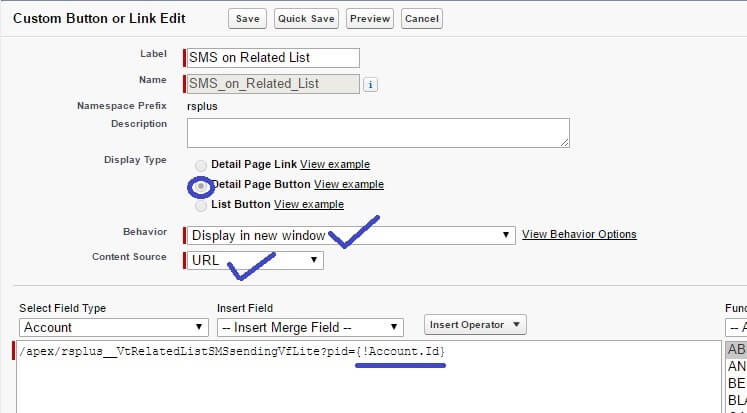
  4. Select Detail Page Button as the display type.
  5. Set Behavior to "Display in new window".
  6. Set Content Source to "URL".
Salesforce Custom Button or Link Edit screen with Label set to SMS on Related List, Detail Page Button selected as the display type, Behavior set to Display in new window, Content Source set to URL, and the formula window containing /apex/rsplus__VtRelatedListSMSsendingVfLite?pid={!Account.Id}.
Fig 01

Add the formula

Copy the code below into the formula editor, replacing <Sobject-API-NAME> with the API name of the object you are creating the button on:

Example
/apex/rsplus__VtRelatedListSMSsendingVfLite?pid={!<Sobject-API-NAME>.Id}

Click Save.

Add the button to the page layout

Edit the page layout for the object and add the new button so it is available to users.

Was this helpful?
← PreviousSend Messages from a Related List Next →Using the Big Chat Console
Docs/Sending messages/SMS on Related List button configuration

SMS on Related List button configuration

The SMS on Related List button can be configured on objects like Account, Contact, or any custom or standard object.

Last updated 28 Nov 2025

Where the button is available by default

The button is already available on Campaign and Account records once the package is installed. If you cannot find it after installation, drag the button from the page layout to make it available to users.

Create the button for a custom object

  1. Log in to Salesforce, go to Setup > Create > Objects, and select the object you want to create the button on.
  2. In the Buttons, Links and Actions section, click New Button or Link.
  3. Enter SMS on Related List as the label.
  4. Select Detail Page Button as the display type.
  5. Set Behavior to "Display in new window".
  6. Set Content Source to "URL".
Salesforce Custom Button or Link Edit screen with Label set to SMS on Related List, Detail Page Button selected as the display type, Behavior set to Display in new window, Content Source set to URL, and the formula window containing /apex/rsplus__VtRelatedListSMSsendingVfLite?pid={!Account.Id}.
Fig 01

Add the formula

Copy the code below into the formula editor, replacing <Sobject-API-NAME> with the API name of the object you are creating the button on:

Example
/apex/rsplus__VtRelatedListSMSsendingVfLite?pid={!<Sobject-API-NAME>.Id}

Click Save.

Add the button to the page layout

Edit the page layout for the object and add the new button so it is available to users.

Was this helpful?
← PreviousSend Messages from a Related List Next →Using the Big Chat Console
Docs/Sending messages/SMS on Related List button configuration

SMS on Related List button configuration

The SMS on Related List button can be configured on objects like Account, Contact, or any custom or standard object.

Last updated 28 Nov 2025

Where the button is available by default

The button is already available on Campaign and Account records once the package is installed. If you cannot find it after installation, drag the button from the page layout to make it available to users.

Create the button for a custom object

  1. Log in to Salesforce, go to Setup > Create > Objects, and select the object you want to create the button on.
  2. In the Buttons, Links and Actions section, click New Button or Link.
  3. Enter SMS on Related List as the label.
  4. Select Detail Page Button as the display type.
  5. Set Behavior to "Display in new window".
  6. Set Content Source to "URL".
Salesforce Custom Button or Link Edit screen with Label set to SMS on Related List, Detail Page Button selected as the display type, Behavior set to Display in new window, Content Source set to URL, and the formula window containing /apex/rsplus__VtRelatedListSMSsendingVfLite?pid={!Account.Id}.
Fig 01

Add the formula

Copy the code below into the formula editor, replacing <Sobject-API-NAME> with the API name of the object you are creating the button on:

Example
/apex/rsplus__VtRelatedListSMSsendingVfLite?pid={!<Sobject-API-NAME>.Id}

Click Save.

Add the button to the page layout

Edit the page layout for the object and add the new button so it is available to users.

Was this helpful?
← PreviousSend Messages from a Related List Next →Using the Big Chat Console
Docs/Sending messages/SMS on Related List button configuration

SMS on Related List button configuration

The SMS on Related List button can be configured on objects like Account, Contact, or any custom or standard object.

Last updated 28 Nov 2025

Where the button is available by default

The button is already available on Campaign and Account records once the package is installed. If you cannot find it after installation, drag the button from the page layout to make it available to users.

Create the button for a custom object

  1. Log in to Salesforce, go to Setup > Create > Objects, and select the object you want to create the button on.
  2. In the Buttons, Links and Actions section, click New Button or Link.
  3. Enter SMS on Related List as the label.
  4. Select Detail Page Button as the display type.
  5. Set Behavior to "Display in new window".
  6. Set Content Source to "URL".
Salesforce Custom Button or Link Edit screen with Label set to SMS on Related List, Detail Page Button selected as the display type, Behavior set to Display in new window, Content Source set to URL, and the formula window containing /apex/rsplus__VtRelatedListSMSsendingVfLite?pid={!Account.Id}.
Fig 01

Add the formula

Copy the code below into the formula editor, replacing <Sobject-API-NAME> with the API name of the object you are creating the button on:

Example
/apex/rsplus__VtRelatedListSMSsendingVfLite?pid={!<Sobject-API-NAME>.Id}

Click Save.

Add the button to the page layout

Edit the page layout for the object and add the new button so it is available to users.

Was this helpful?
← PreviousSend Messages from a Related List Next →Using the Big Chat Console