
SMS Template Creation
SMS templates work like Email Templates: dynamic messages are sent by creating custom message templates. Creating a custom SMS template is simpler than composing an email template.
Last updated 28 Nov 2025Create a custom SMS template
- Log in to Salesforce.
- Open the ValueText SMS app.
- Click the Dynamic Templates tab.
- Click New to create a new template.
Two types of templates are available:
- Salesforce object templates: built using merge fields pulled from Salesforce objects.
- Non-Salesforce object templates: plain text templates, built without merge fields.
To create a Salesforce object template, choose Salesforce Object Template in the Template Type field, then search for an object by name and select one to build the custom template.
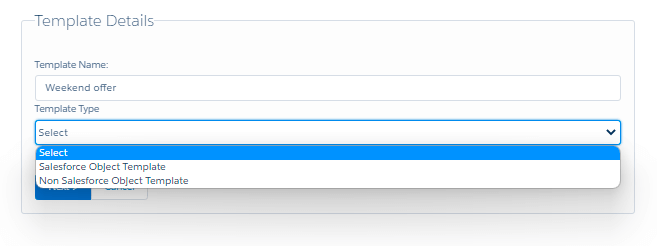
Choose the object and the channel
For example, selecting Contact in the Select Object field and clicking Next opens a window where you build the body of the template.
Templates can be set to send by SMS, WhatsApp, or both.
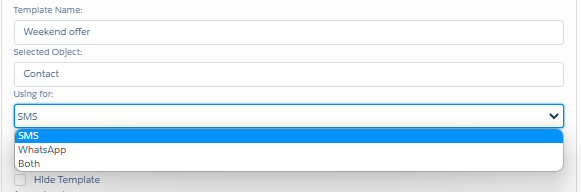
Configure template settings and merge fields
- Inactive: check this box to deactivate the template.
- Is It WhatsApp approved template?: check this box if the template has been approved for WhatsApp.
- Hide Template: check this box to hide the template.
Add the template to any access level by searching for the access level name in the Access Level box.
Select the field to build the template from in the Select Merge Field dropdown. Selecting Full Name automatically populates the preview in the yellow box above the Template Body.
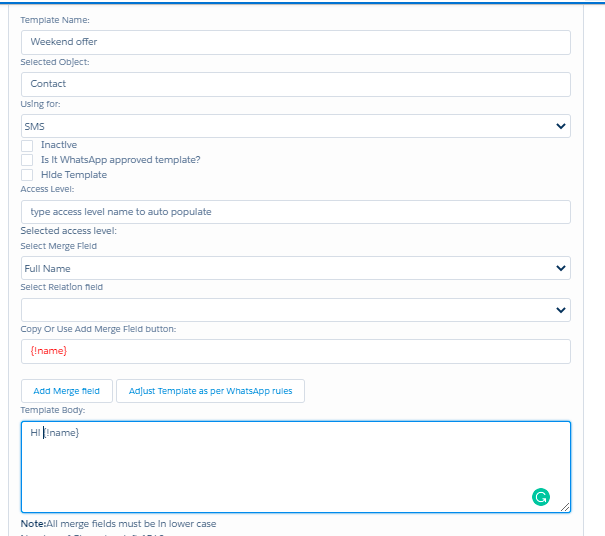
Add a relation field
Select Relation Field populates whenever a Merge Field entry ends with a ">" suffix. The ">" indicates a relation field exists on the selected merge field.
For example, selecting Account ID > from the Merge Field dropdown populates the Select Relation Field dropdown with every field on the related Account object, such as Account Name.
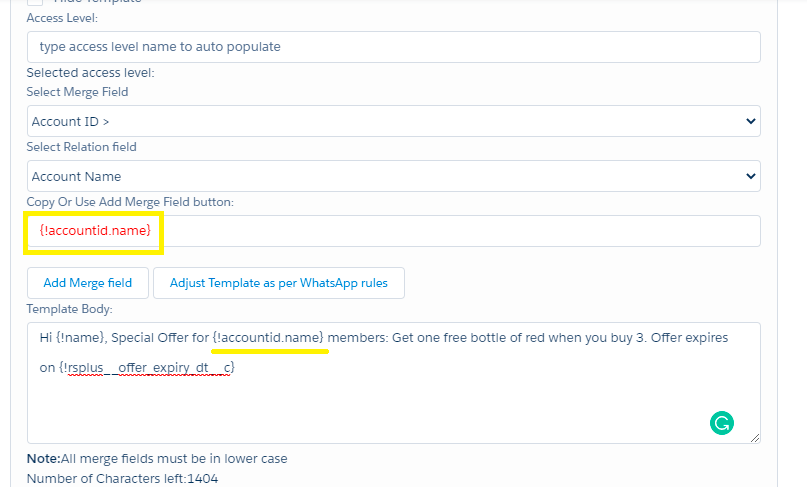
Restrict the template by file, profile, or record type
- Attach a file to the template by searching for it by name in the Search file by name box.
- Show the template only to specific profiles by adding them to the profiles box.
- Hide the template from specific record types by adding them to the record types box.
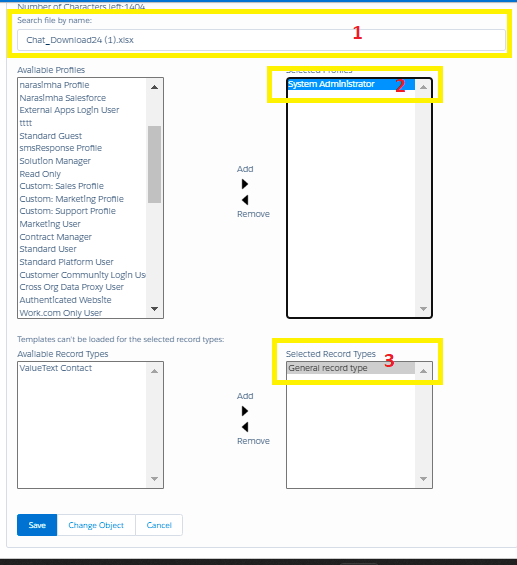
Once the template body is ready, click Save.
Send a message using your template
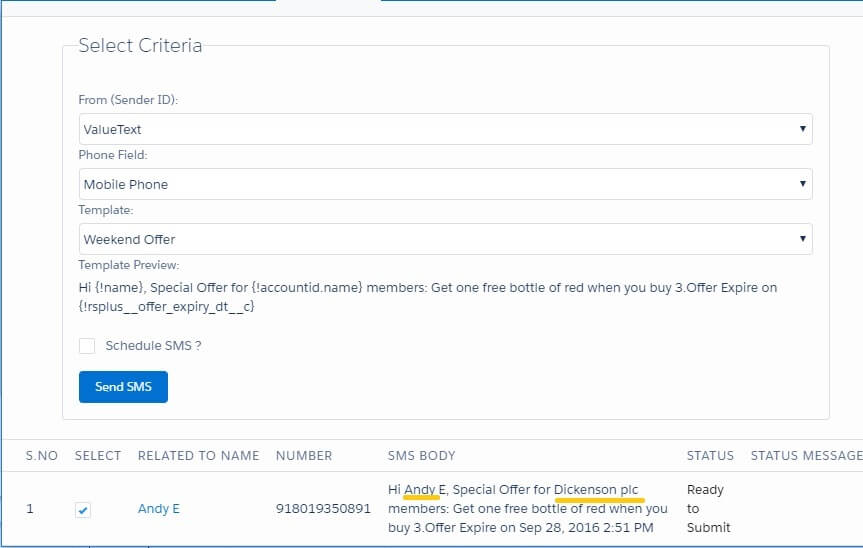
To use the template you created, click Send SMS on a contact and select the template under the Select Template option.
Features that stand out
- A relation object field can be used on templates. For example, a phone field on an Account can be referenced from a Contact template.
- An unlimited number of relation fields can be used on a template, for example Account fields, Related To fields, and Contact Owner fields.