
Docs/Sending messages/Send Bulk Messages from a CSV File
Send Bulk Messages from a CSV File
Bulk Messages From CSV sends the same SMS content to a list of mobile numbers. All you need is a CSV file prepared with the required columns.
Last updated 28 Nov 2025Navigation: In Salesforce, open the Bulk Messages From CSV tab.
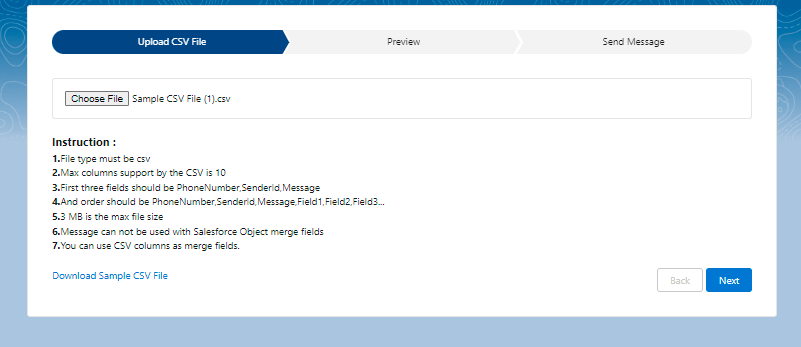
Prepare and upload the CSV file
Download the sample CSV file from the screen, fill in the data in all columns, then upload the file and click Next.

Configure the message
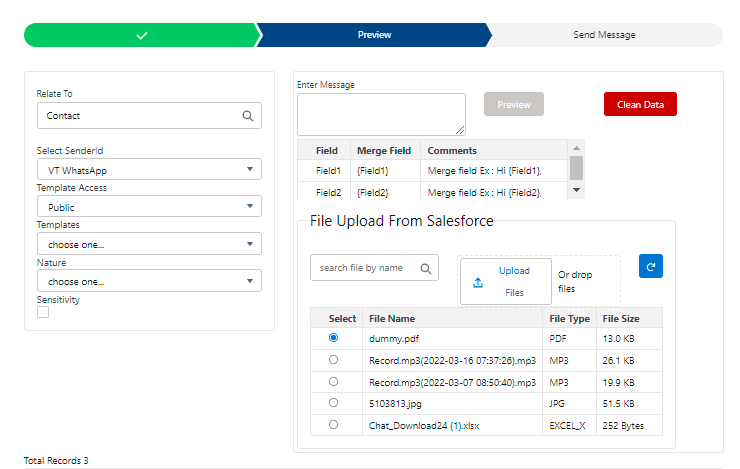
- Link to a record. To link the message to a record in Salesforce, select the object in the Related to box by searching for its name.
- Choose a sender ID. Select a sender ID from the Select SenderId dropdown.
- Choose a template (optional). To send a template, choose one from the templates list. This replaces the message content from the CSV file with the selected template.
- Attach a file (optional). To send a file along with the text, upload it and select it from the File Upload From Salesforce section.
Preview and send
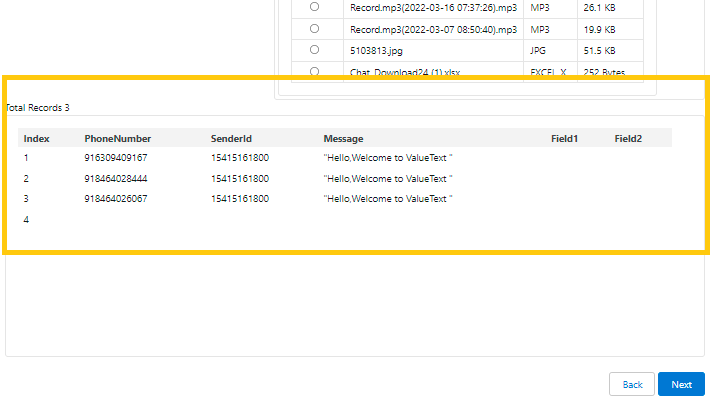
Preview up to 10 messages, then click Next.
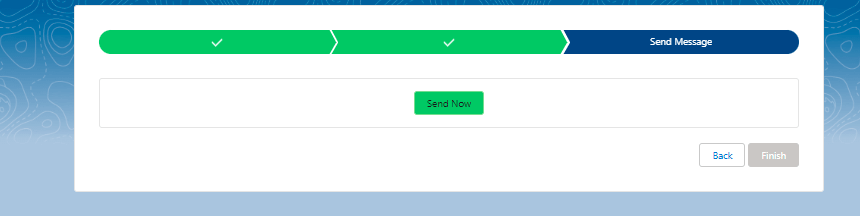
Click Send Now to deliver the message.
Special features
- You can send messages without adding or attaching a contact record.
- You can view the status of each message in the Message Bucket object.
Was this helpful?