
Docs/Sending messages/Send Messages from a Related List

Send Messages from a Related List

The Message On Related List option lets you send a message to every contact on a single Account, or to any related child record, as long as a relationship exists between the objects.

Last updated 28 Nov 2025
  1. Open the Account. Click the Account whose contacts, or any related child record, you want to message.
  2. Open the action. On the Account Details page, click Message On Related List.
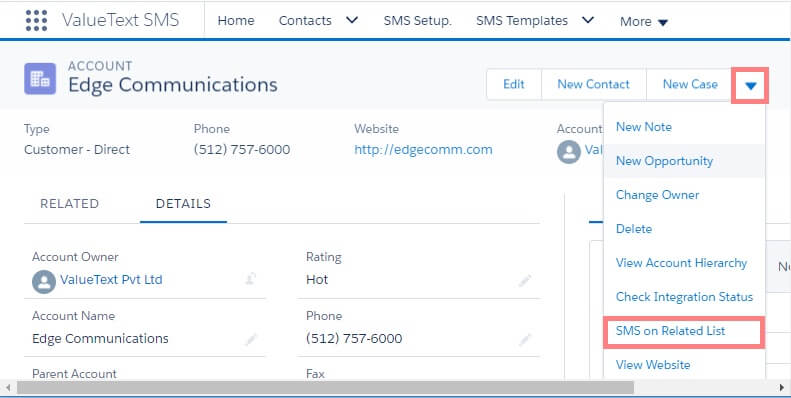
    Salesforce Account detail page for Edge Communications with the record-level action dropdown open, showing SMS on Related List highlighted among the available actions.
    Fig 01
  3. Fill in the criteria. A new window opens. Fill in the required fields, then select the child related list you want to send a message to.
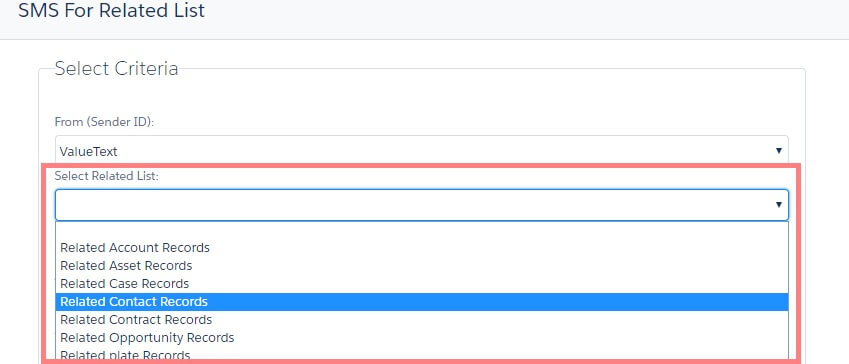
    SMS For Related List window with a Select Criteria panel, showing the Select Related List dropdown open and Related Contact Records highlighted among the available related list options.
    Fig 02
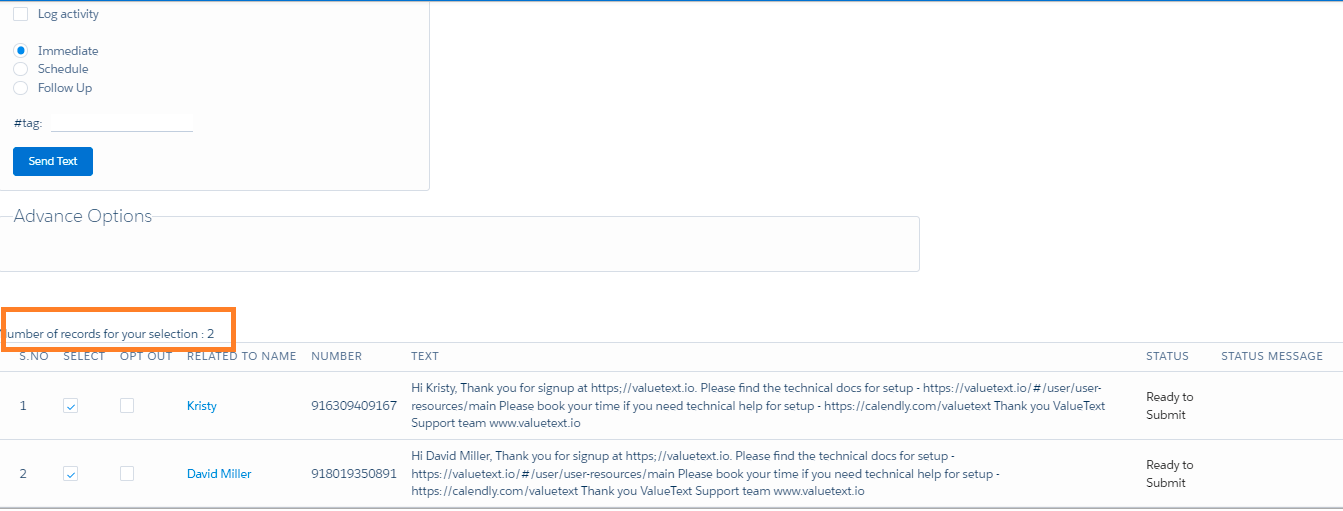
  4. Review the records. Selecting a related list populates every matching record. The example below shows an account with 20 related records.
  5. Send. Click Send SMS to send the message to every record in the list.

Contact your Salesforce admin if you do not see the Message On Related List action.

Tip: the same feature works for sending a message to every Campaign member in a Campaign.

Choose a sending option

Every send offers three options: Immediate, Schedule, or Follow Up.

  • Immediate: the default option. It sends the message right away when you click Send SMS.
  • Schedule: sets a delivery date and time. Salesforce fills in a default time zone, so confirm it matches your preference using the edit option. For example, if your default time zone is America/Santiago but your customer is in India, reset the time zone under the edit option, or ask your Salesforce admin to change your default time zone.
  • Follow Up: follows up with a contact or lead based on a field on the record. It keeps sending the message until that field changes, delivering it at whatever future date and time you set. Salesforce fills in a default time zone here too; change it under the edit option if you need a different one.
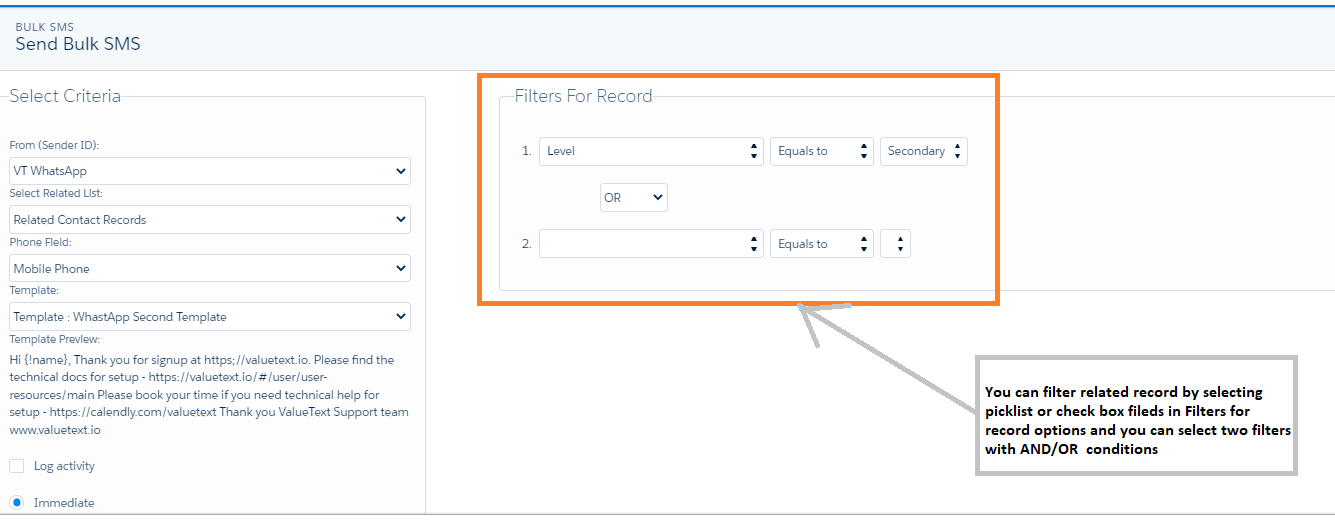
Bulk SMS send screen with a Select Criteria panel on the left and a highlighted Filters For Record panel on the right, showing two picklist filter conditions joined by an OR condition.
Fig 03
Bulk SMS send screen showing the Immediate, Schedule, and Follow Up options with Immediate selected, the Send Text button, and a highlighted count of 2 selected records listed with their status below.
Fig 04

Note: the same feature works for sending a message to every Campaign member in a Campaign.

Benefits and limits

Benefits

  • Send a message to multiple contacts with one click.

Limits

  • The preview window displays up to 1,000 records, but you can send a message to up to 10,000 contacts or records.
Was this helpful?
← PreviousSend SMS/WhatsApp from Salesforce Reports Next →SMS on Related List button configuration
Docs/Sending messages/Send Messages from a Related List

Send Messages from a Related List

The Message On Related List option lets you send a message to every contact on a single Account, or to any related child record, as long as a relationship exists between the objects.

Last updated 28 Nov 2025
  1. Open the Account. Click the Account whose contacts, or any related child record, you want to message.
  2. Open the action. On the Account Details page, click Message On Related List.
    Salesforce Account detail page for Edge Communications with the record-level action dropdown open, showing SMS on Related List highlighted among the available actions.
    Fig 01
  3. Fill in the criteria. A new window opens. Fill in the required fields, then select the child related list you want to send a message to.
    SMS For Related List window with a Select Criteria panel, showing the Select Related List dropdown open and Related Contact Records highlighted among the available related list options.
    Fig 02
  4. Review the records. Selecting a related list populates every matching record. The example below shows an account with 20 related records.
  5. Send. Click Send SMS to send the message to every record in the list.

Contact your Salesforce admin if you do not see the Message On Related List action.

Tip: the same feature works for sending a message to every Campaign member in a Campaign.

Choose a sending option

Every send offers three options: Immediate, Schedule, or Follow Up.

  • Immediate: the default option. It sends the message right away when you click Send SMS.
  • Schedule: sets a delivery date and time. Salesforce fills in a default time zone, so confirm it matches your preference using the edit option. For example, if your default time zone is America/Santiago but your customer is in India, reset the time zone under the edit option, or ask your Salesforce admin to change your default time zone.
  • Follow Up: follows up with a contact or lead based on a field on the record. It keeps sending the message until that field changes, delivering it at whatever future date and time you set. Salesforce fills in a default time zone here too; change it under the edit option if you need a different one.
Bulk SMS send screen with a Select Criteria panel on the left and a highlighted Filters For Record panel on the right, showing two picklist filter conditions joined by an OR condition.
Fig 03
Bulk SMS send screen showing the Immediate, Schedule, and Follow Up options with Immediate selected, the Send Text button, and a highlighted count of 2 selected records listed with their status below.
Fig 04

Note: the same feature works for sending a message to every Campaign member in a Campaign.

Benefits and limits

Benefits

  • Send a message to multiple contacts with one click.

Limits

  • The preview window displays up to 1,000 records, but you can send a message to up to 10,000 contacts or records.
Was this helpful?
← PreviousSend SMS/WhatsApp from Salesforce Reports Next →SMS on Related List button configuration
Docs/Sending messages/Send Messages from a Related List

Send Messages from a Related List

The Message On Related List option lets you send a message to every contact on a single Account, or to any related child record, as long as a relationship exists between the objects.

Last updated 28 Nov 2025
  1. Open the Account. Click the Account whose contacts, or any related child record, you want to message.
  2. Open the action. On the Account Details page, click Message On Related List.
    Salesforce Account detail page for Edge Communications with the record-level action dropdown open, showing SMS on Related List highlighted among the available actions.
    Fig 01
  3. Fill in the criteria. A new window opens. Fill in the required fields, then select the child related list you want to send a message to.
    SMS For Related List window with a Select Criteria panel, showing the Select Related List dropdown open and Related Contact Records highlighted among the available related list options.
    Fig 02
  4. Review the records. Selecting a related list populates every matching record. The example below shows an account with 20 related records.
  5. Send. Click Send SMS to send the message to every record in the list.

Contact your Salesforce admin if you do not see the Message On Related List action.

Tip: the same feature works for sending a message to every Campaign member in a Campaign.

Choose a sending option

Every send offers three options: Immediate, Schedule, or Follow Up.

  • Immediate: the default option. It sends the message right away when you click Send SMS.
  • Schedule: sets a delivery date and time. Salesforce fills in a default time zone, so confirm it matches your preference using the edit option. For example, if your default time zone is America/Santiago but your customer is in India, reset the time zone under the edit option, or ask your Salesforce admin to change your default time zone.
  • Follow Up: follows up with a contact or lead based on a field on the record. It keeps sending the message until that field changes, delivering it at whatever future date and time you set. Salesforce fills in a default time zone here too; change it under the edit option if you need a different one.
Bulk SMS send screen with a Select Criteria panel on the left and a highlighted Filters For Record panel on the right, showing two picklist filter conditions joined by an OR condition.
Fig 03
Bulk SMS send screen showing the Immediate, Schedule, and Follow Up options with Immediate selected, the Send Text button, and a highlighted count of 2 selected records listed with their status below.
Fig 04

Note: the same feature works for sending a message to every Campaign member in a Campaign.

Benefits and limits

Benefits

  • Send a message to multiple contacts with one click.

Limits

  • The preview window displays up to 1,000 records, but you can send a message to up to 10,000 contacts or records.
Was this helpful?
← PreviousSend SMS/WhatsApp from Salesforce Reports Next →SMS on Related List button configuration
Docs/Sending messages/Send Messages from a Related List

Send Messages from a Related List

The Message On Related List option lets you send a message to every contact on a single Account, or to any related child record, as long as a relationship exists between the objects.

Last updated 28 Nov 2025
  1. Open the Account. Click the Account whose contacts, or any related child record, you want to message.
  2. Open the action. On the Account Details page, click Message On Related List.
    Salesforce Account detail page for Edge Communications with the record-level action dropdown open, showing SMS on Related List highlighted among the available actions.
    Fig 01
  3. Fill in the criteria. A new window opens. Fill in the required fields, then select the child related list you want to send a message to.
    SMS For Related List window with a Select Criteria panel, showing the Select Related List dropdown open and Related Contact Records highlighted among the available related list options.
    Fig 02
  4. Review the records. Selecting a related list populates every matching record. The example below shows an account with 20 related records.
  5. Send. Click Send SMS to send the message to every record in the list.

Contact your Salesforce admin if you do not see the Message On Related List action.

Tip: the same feature works for sending a message to every Campaign member in a Campaign.

Choose a sending option

Every send offers three options: Immediate, Schedule, or Follow Up.

  • Immediate: the default option. It sends the message right away when you click Send SMS.
  • Schedule: sets a delivery date and time. Salesforce fills in a default time zone, so confirm it matches your preference using the edit option. For example, if your default time zone is America/Santiago but your customer is in India, reset the time zone under the edit option, or ask your Salesforce admin to change your default time zone.
  • Follow Up: follows up with a contact or lead based on a field on the record. It keeps sending the message until that field changes, delivering it at whatever future date and time you set. Salesforce fills in a default time zone here too; change it under the edit option if you need a different one.
Bulk SMS send screen with a Select Criteria panel on the left and a highlighted Filters For Record panel on the right, showing two picklist filter conditions joined by an OR condition.
Fig 03
Bulk SMS send screen showing the Immediate, Schedule, and Follow Up options with Immediate selected, the Send Text button, and a highlighted count of 2 selected records listed with their status below.
Fig 04

Note: the same feature works for sending a message to every Campaign member in a Campaign.

Benefits and limits

Benefits

  • Send a message to multiple contacts with one click.

Limits

  • The preview window displays up to 1,000 records, but you can send a message to up to 10,000 contacts or records.
Was this helpful?
← PreviousSend SMS/WhatsApp from Salesforce Reports Next →SMS on Related List button configuration