
Docs/Get started/Configure Channel Settings in ValueText

Configure Channel Settings in ValueText

ValueText is designed to handle multiple channels. It currently supports SMS and WhatsApp, and no other messaging channel.

Last updated 2 Jul 2026
Other channels, such as WeChat or Line, or any other custom app, can be added on request with some development effort.

Enable any channel

To enable channels, select the channels you want in ValueText Setup.

Navigate to Salesforce > ValueText > ValueText Setup tab > Channel routing default settings.

Choose your Preferred channel - 1, Preferred channel - 2, and Preferred channel - 3. Messages send in that order.
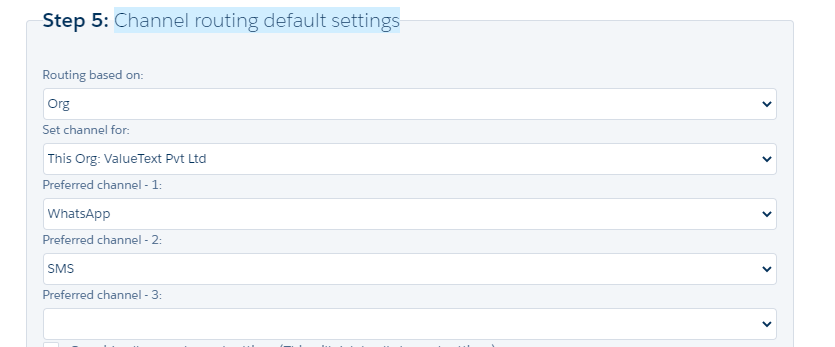
ValueText Setup wizard on the Channel Routing step (Step 5), showing Routing based on set to Org, Set channel for set to This Org: ValueText Pvt Ltd, Preferred channel - 1 set to WhatsApp, Preferred channel - 2 set to SMS, and an empty Preferred channel - 3 field.
Fig 01

Channels at message interfaces

The chat console, the Bulk Message list view, and other interfaces follow the same channel order you set in ValueText Setup. The default channel is your Preferred channel - 1.

You can switch to a different channel when sending an individual message.
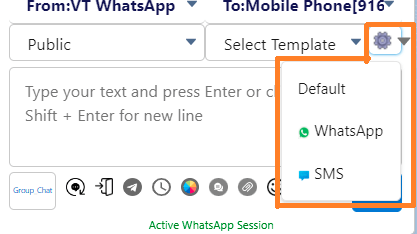
Chat console message composer showing From: VT WhatsApp and To: Mobile Phone fields, with the channel dropdown open showing Default, WhatsApp, and SMS options.
Fig 02
Bulk messaging template screen with Template Access set to Public and Template or Bot set to Select Template, showing the Select Channel dropdown open with Default, WhatsApp, and SMS options highlighted.
Fig 03
Was this helpful?
← PreviousAssign ValueText License to Users Next →Disable a Phone Field in Salesforce
Docs/Get started/Configure Channel Settings in ValueText

Configure Channel Settings in ValueText

ValueText is designed to handle multiple channels. It currently supports SMS and WhatsApp, and no other messaging channel.

Last updated 2 Jul 2026
Other channels, such as WeChat or Line, or any other custom app, can be added on request with some development effort.

Enable any channel

To enable channels, select the channels you want in ValueText Setup.

Navigate to Salesforce > ValueText > ValueText Setup tab > Channel routing default settings.

Choose your Preferred channel - 1, Preferred channel - 2, and Preferred channel - 3. Messages send in that order.

ValueText Setup wizard on the Channel Routing step (Step 5), showing Routing based on set to Org, Set channel for set to This Org: ValueText Pvt Ltd, Preferred channel - 1 set to WhatsApp, Preferred channel - 2 set to SMS, and an empty Preferred channel - 3 field.
Fig 01

Channels at message interfaces

The chat console, the Bulk Message list view, and other interfaces follow the same channel order you set in ValueText Setup. The default channel is your Preferred channel - 1.

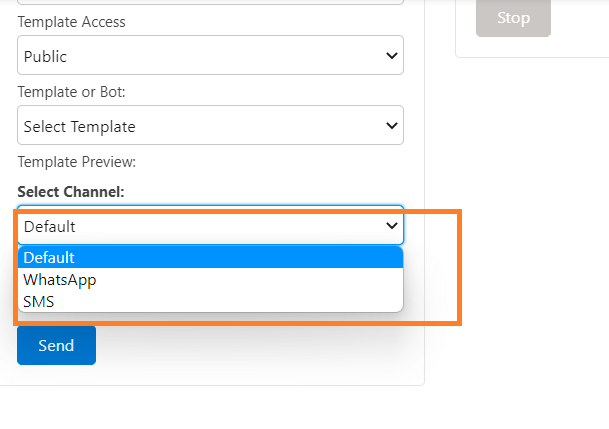
You can switch to a different channel when sending an individual message.
Chat console message composer showing From: VT WhatsApp and To: Mobile Phone fields, with the channel dropdown open showing Default, WhatsApp, and SMS options.
Fig 02
Bulk messaging template screen with Template Access set to Public and Template or Bot set to Select Template, showing the Select Channel dropdown open with Default, WhatsApp, and SMS options highlighted.
Fig 03
Was this helpful?
← PreviousAssign ValueText License to Users Next →Disable a Phone Field in Salesforce
Docs/Get started/Configure Channel Settings in ValueText

Configure Channel Settings in ValueText

ValueText is designed to handle multiple channels. It currently supports SMS and WhatsApp, and no other messaging channel.

Last updated 2 Jul 2026
Other channels, such as WeChat or Line, or any other custom app, can be added on request with some development effort.

Enable any channel

To enable channels, select the channels you want in ValueText Setup.

Navigate to Salesforce > ValueText > ValueText Setup tab > Channel routing default settings.

Choose your Preferred channel - 1, Preferred channel - 2, and Preferred channel - 3. Messages send in that order.

ValueText Setup wizard on the Channel Routing step (Step 5), showing Routing based on set to Org, Set channel for set to This Org: ValueText Pvt Ltd, Preferred channel - 1 set to WhatsApp, Preferred channel - 2 set to SMS, and an empty Preferred channel - 3 field.
Fig 01

Channels at message interfaces

The chat console, the Bulk Message list view, and other interfaces follow the same channel order you set in ValueText Setup. The default channel is your Preferred channel - 1.

You can switch to a different channel when sending an individual message.

Chat console message composer showing From: VT WhatsApp and To: Mobile Phone fields, with the channel dropdown open showing Default, WhatsApp, and SMS options.
Fig 02
Bulk messaging template screen with Template Access set to Public and Template or Bot set to Select Template, showing the Select Channel dropdown open with Default, WhatsApp, and SMS options highlighted.
Fig 03
Was this helpful?
← PreviousAssign ValueText License to Users Next →Disable a Phone Field in Salesforce
Docs/Get started/Configure Channel Settings in ValueText

Configure Channel Settings in ValueText

ValueText is designed to handle multiple channels. It currently supports SMS and WhatsApp, and no other messaging channel.

Last updated 2 Jul 2026
Other channels, such as WeChat or Line, or any other custom app, can be added on request with some development effort.

Enable any channel

To enable channels, select the channels you want in ValueText Setup.

Navigate to Salesforce > ValueText > ValueText Setup tab > Channel routing default settings.

Choose your Preferred channel - 1, Preferred channel - 2, and Preferred channel - 3. Messages send in that order.

ValueText Setup wizard on the Channel Routing step (Step 5), showing Routing based on set to Org, Set channel for set to This Org: ValueText Pvt Ltd, Preferred channel - 1 set to WhatsApp, Preferred channel - 2 set to SMS, and an empty Preferred channel - 3 field.
Fig 01

Channels at message interfaces

The chat console, the Bulk Message list view, and other interfaces follow the same channel order you set in ValueText Setup. The default channel is your Preferred channel - 1.

You can switch to a different channel when sending an individual message.

Chat console message composer showing From: VT WhatsApp and To: Mobile Phone fields, with the channel dropdown open showing Default, WhatsApp, and SMS options.
Fig 02
Bulk messaging template screen with Template Access set to Public and Template or Bot set to Select Template, showing the Select Channel dropdown open with Default, WhatsApp, and SMS options highlighted.
Fig 03
Was this helpful?
← PreviousAssign ValueText License to Users Next →Disable a Phone Field in Salesforce