
Docs/History & record linking/Log Chat Conversations to Activity History
Log Chat Conversations to Activity History
A flow can convert a complete chat conversation into activity history. Each time a chat conversation starts, a chat session record is created with its status field set to "open."
Last updated 28 Nov 2025How a chat session's status changes
When the conversation is closed from the chat console, the chat session record's status field updates to "closed."
There are multiple ways to close a chat session:
- The user closes it manually.
- It closes automatically when a new message arrives and the gap since the last message is longer than the session time set on the ValueText Setup page (Step 1).
- A scheduled job closes it after a set time if the customer never replies.
Build the flow to log the conversation
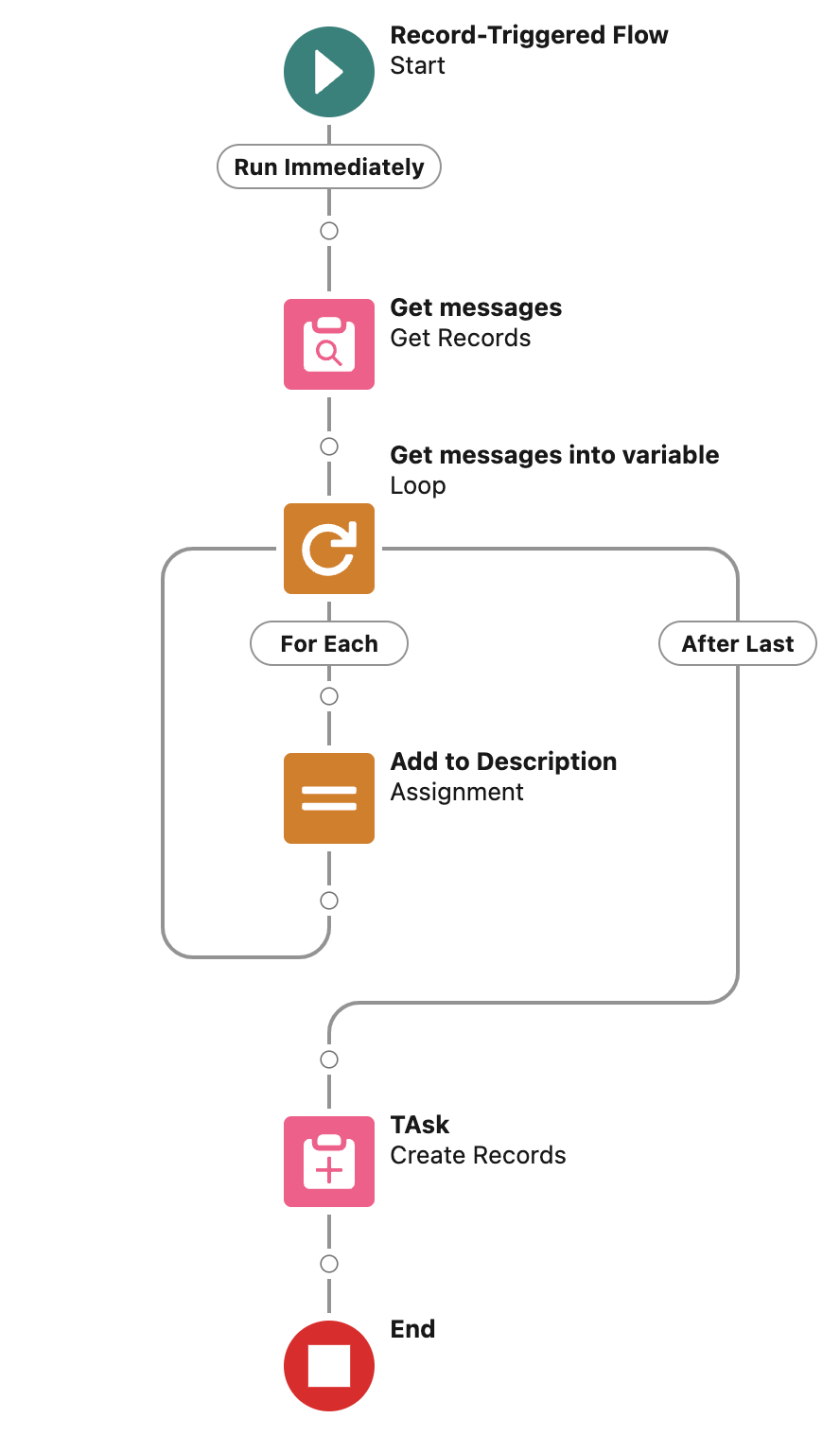
Set up a flow that runs when a chat session closes, then walks its related messages into a single activity history entry.
- Set the start conditions. Trigger the flow when a Chat Session record is updated, with an entry condition of
rsplus__Status__cEqualsClosed.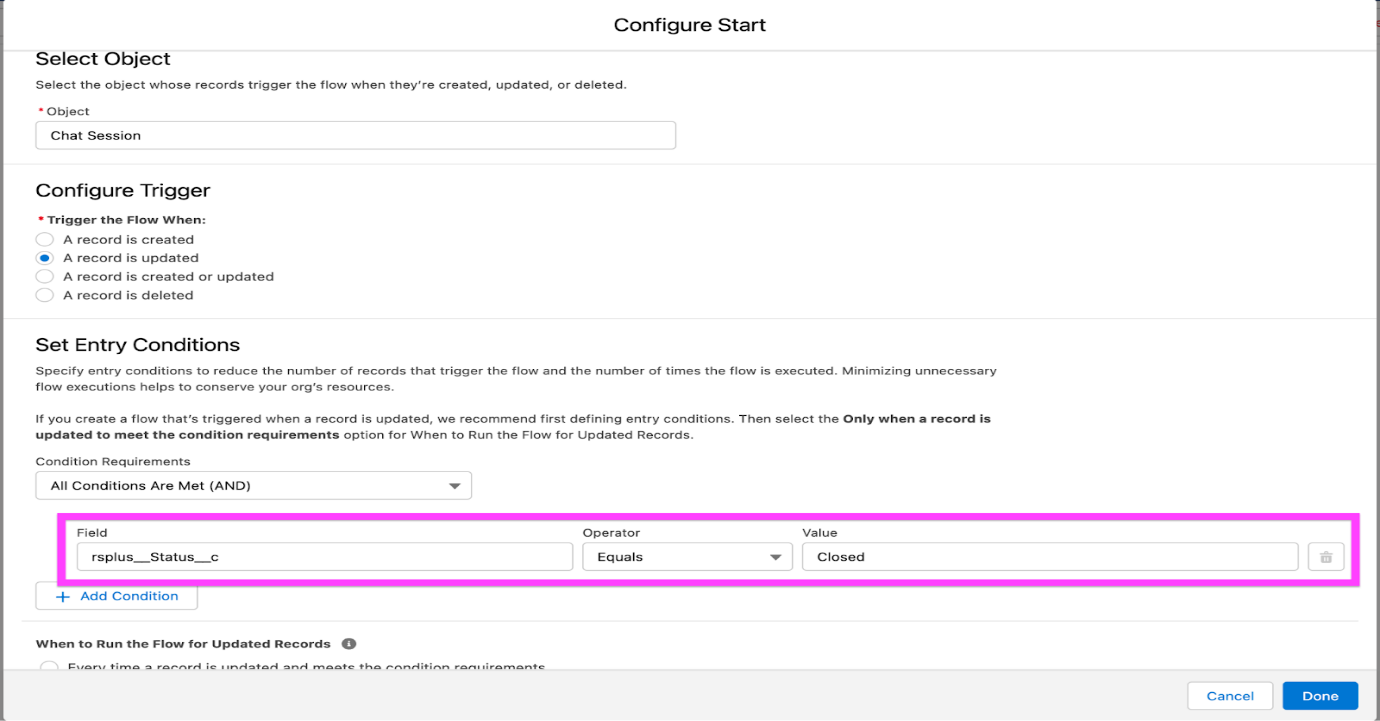
Fig 01 - Get the Message Bucket records. Retrieve Message Bucket records where
rsplus__Chat_Session__c(the lookup field on Message Bucket) equals the chat session record's Record ID.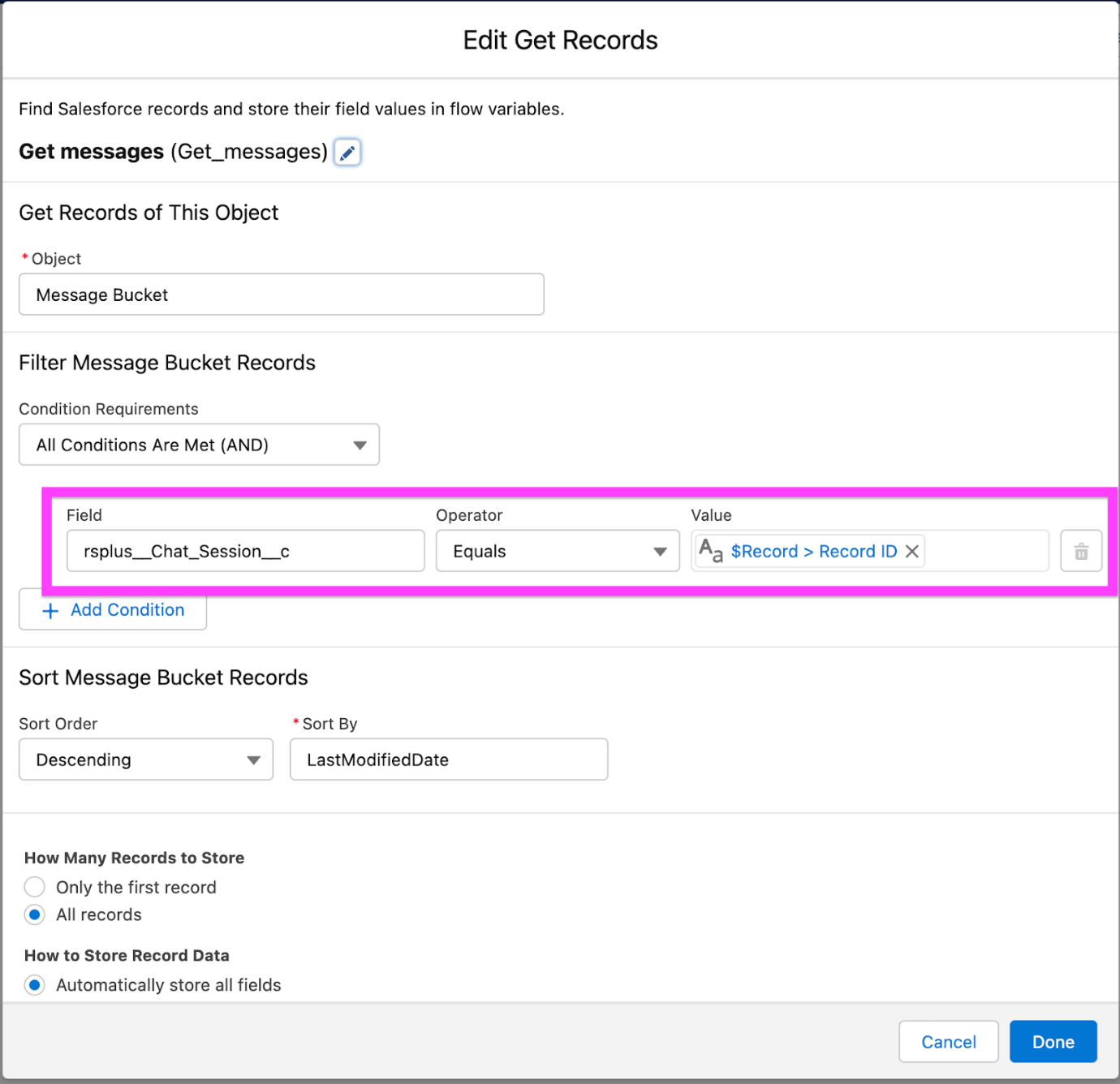
Fig 02 - Create a text variable. Add a Text variable to hold the full conversation as it gets assembled.
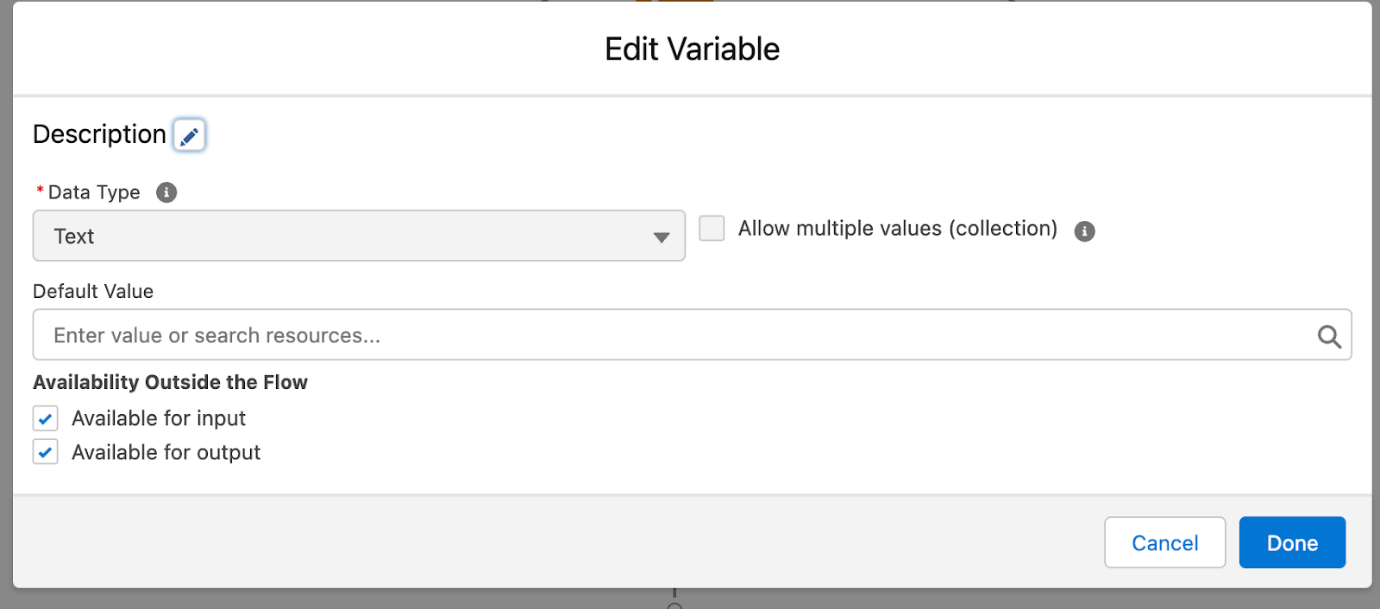
Fig 03 - Loop through the messages and build the log. Loop over the Message Bucket records and append each one to the variable using a formula field:
```
IF(ISBLANK({!Description}), '', {!Description}+BR())
+TEXT({!Get_messages_into_variable.rsplus__Type__c})
+' --['+TEXT({!Get_messages_into_variable.rsplus__Submitted_On__c})+'] --'+
{!Get_messages_into_variable.rsplus__Message__c}
```
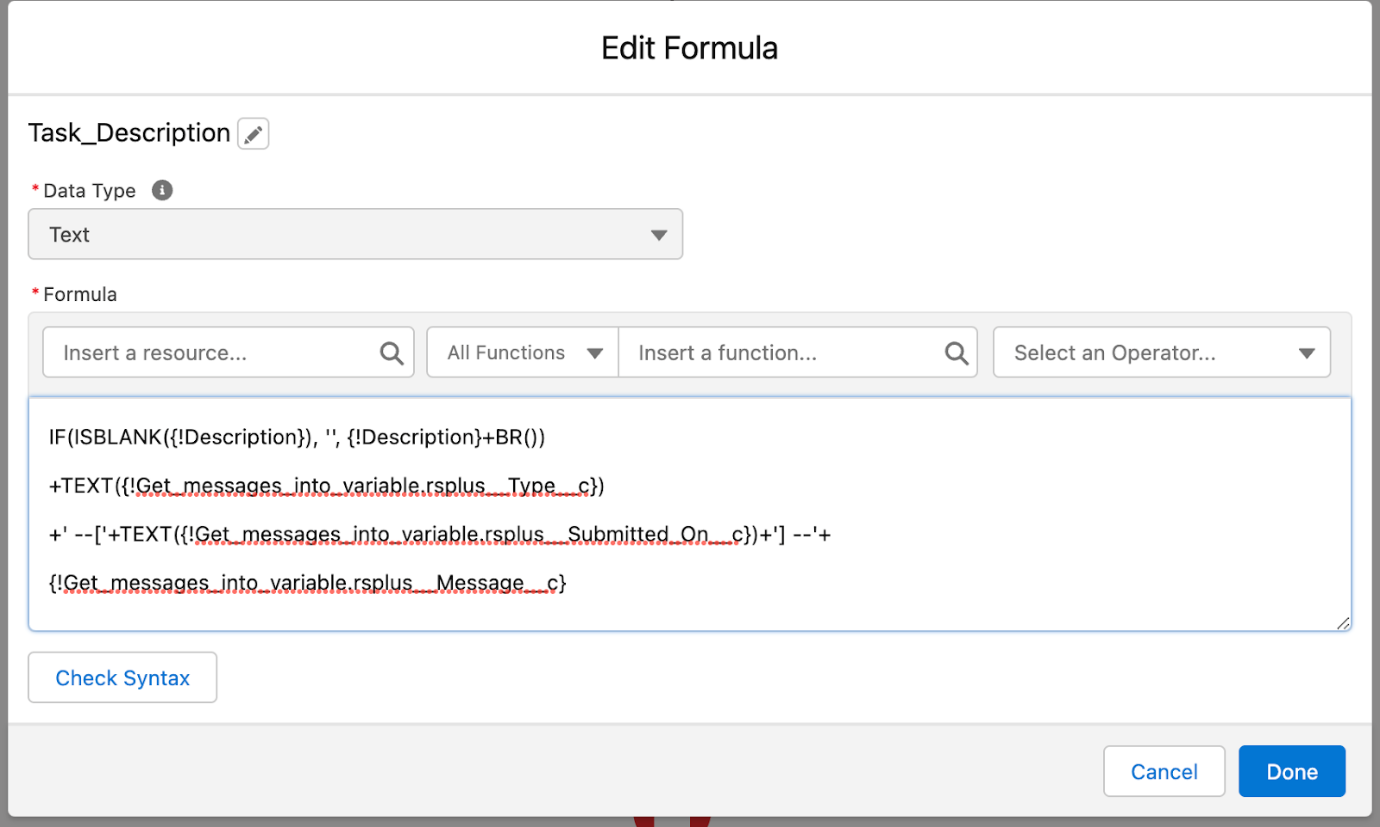
Fig 04 - Create the Task. Add a Create Records element for the Task object to log the conversation under the activity history of the related record.
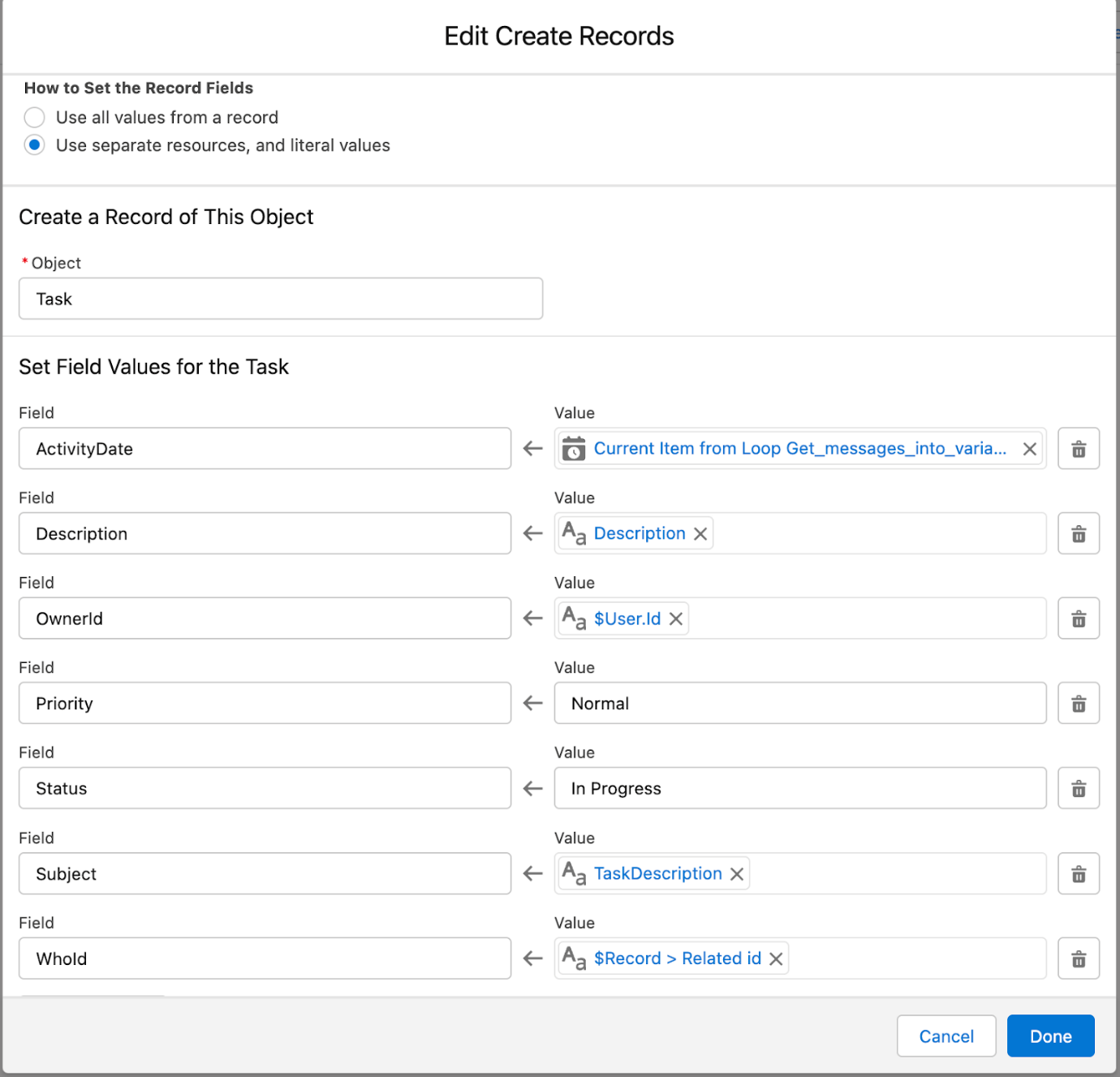
Fig 05
The complete flow:
Was this helpful?