
Docs/Sending messages/Bulk Messaging in Salesforce

Bulk Messaging in Salesforce

Bulk Messaging sends the same SMS content to a list of mobile numbers. All you need is the correct mobile number for each receiver.

Last updated 28 Nov 2025

Open Bulk Messaging

In Salesforce, open the Bulk Messaging tab.

Send a bulk message

  1. Select the Sender ID. Choose it from the "Select Sender ID" dropdown.
  2. Choose a phone number separator. In the "Phone Numbers separator" field, select Comma, Space, or Newline to match how you will enter the numbers.
  3. Enter the phone numbers. In the "Phone Numbers (Separated by a comma)" box, enter as many mobile numbers as you like, separated by the character you chose in the previous step (comma, space, or newline).
  4. Add the message body. Enter your text in the Message Body field. The body is limited to 1600 characters unless you select "Non-object Templates" (templates without merge fields).
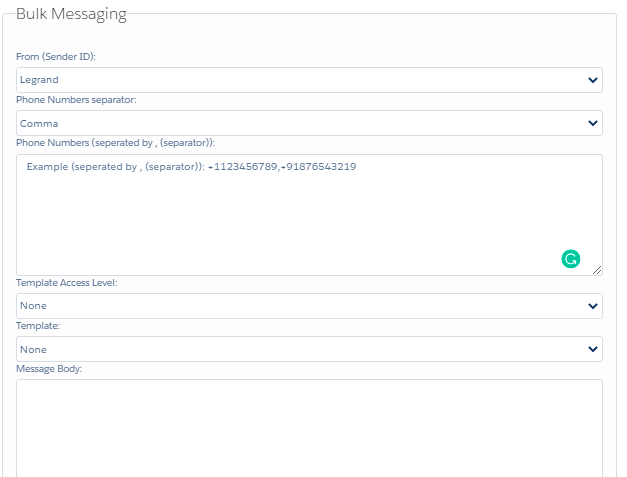
    Bulk Messaging screen in Salesforce showing the From (Sender ID) dropdown set to Legrand, the Phone Numbers separator set to Comma, a Phone Numbers box with an example format, Template Access Level and Template both set to None, and an empty Message Body field.
    Fig 01
  5. Send the message. Click Send SMS to deliver it.

Special features

  • You can send messages even without adding or attaching a contact record.
  • You can view the status of each message in the Message Bucket object.

Limitations

With Bulk Messaging, you can send up to 1000 messages. To send more than 1000, use the Bulk Messages from CSV feature.

Was this helpful?
← PreviousSending a Message from the Chat Console Next →Bulk Messaging from a List View
Docs/Sending messages/Bulk Messaging in Salesforce

Bulk Messaging in Salesforce

Bulk Messaging sends the same SMS content to a list of mobile numbers. All you need is the correct mobile number for each receiver.

Last updated 28 Nov 2025

Open Bulk Messaging

In Salesforce, open the Bulk Messaging tab.

Send a bulk message

  1. Select the Sender ID. Choose it from the "Select Sender ID" dropdown.
  2. Choose a phone number separator. In the "Phone Numbers separator" field, select Comma, Space, or Newline to match how you will enter the numbers.
  3. Enter the phone numbers. In the "Phone Numbers (Separated by a comma)" box, enter as many mobile numbers as you like, separated by the character you chose in the previous step (comma, space, or newline).
  4. Add the message body. Enter your text in the Message Body field. The body is limited to 1600 characters unless you select "Non-object Templates" (templates without merge fields).
    Bulk Messaging screen in Salesforce showing the From (Sender ID) dropdown set to Legrand, the Phone Numbers separator set to Comma, a Phone Numbers box with an example format, Template Access Level and Template both set to None, and an empty Message Body field.
    Fig 01
  5. Send the message. Click Send SMS to deliver it.

Special features

  • You can send messages even without adding or attaching a contact record.
  • You can view the status of each message in the Message Bucket object.

Limitations

With Bulk Messaging, you can send up to 1000 messages. To send more than 1000, use the Bulk Messages from CSV feature.

Was this helpful?
← PreviousSending a Message from the Chat Console Next →Bulk Messaging from a List View
Docs/Sending messages/Bulk Messaging in Salesforce

Bulk Messaging in Salesforce

Bulk Messaging sends the same SMS content to a list of mobile numbers. All you need is the correct mobile number for each receiver.

Last updated 28 Nov 2025

Open Bulk Messaging

In Salesforce, open the Bulk Messaging tab.

Send a bulk message

  1. Select the Sender ID. Choose it from the "Select Sender ID" dropdown.
  2. Choose a phone number separator. In the "Phone Numbers separator" field, select Comma, Space, or Newline to match how you will enter the numbers.
  3. Enter the phone numbers. In the "Phone Numbers (Separated by a comma)" box, enter as many mobile numbers as you like, separated by the character you chose in the previous step (comma, space, or newline).
  4. Add the message body. Enter your text in the Message Body field. The body is limited to 1600 characters unless you select "Non-object Templates" (templates without merge fields).
    Bulk Messaging screen in Salesforce showing the From (Sender ID) dropdown set to Legrand, the Phone Numbers separator set to Comma, a Phone Numbers box with an example format, Template Access Level and Template both set to None, and an empty Message Body field.
    Fig 01
  5. Send the message. Click Send SMS to deliver it.

Special features

  • You can send messages even without adding or attaching a contact record.
  • You can view the status of each message in the Message Bucket object.

Limitations

With Bulk Messaging, you can send up to 1000 messages. To send more than 1000, use the Bulk Messages from CSV feature.

Was this helpful?
← PreviousSending a Message from the Chat Console Next →Bulk Messaging from a List View
Docs/Sending messages/Bulk Messaging in Salesforce

Bulk Messaging in Salesforce

Bulk Messaging sends the same SMS content to a list of mobile numbers. All you need is the correct mobile number for each receiver.

Last updated 28 Nov 2025

Open Bulk Messaging

In Salesforce, open the Bulk Messaging tab.

Send a bulk message

  1. Select the Sender ID. Choose it from the "Select Sender ID" dropdown.
  2. Choose a phone number separator. In the "Phone Numbers separator" field, select Comma, Space, or Newline to match how you will enter the numbers.
  3. Enter the phone numbers. In the "Phone Numbers (Separated by a comma)" box, enter as many mobile numbers as you like, separated by the character you chose in the previous step (comma, space, or newline).
  4. Add the message body. Enter your text in the Message Body field. The body is limited to 1600 characters unless you select "Non-object Templates" (templates without merge fields).
    Bulk Messaging screen in Salesforce showing the From (Sender ID) dropdown set to Legrand, the Phone Numbers separator set to Comma, a Phone Numbers box with an example format, Template Access Level and Template both set to None, and an empty Message Body field.
    Fig 01
  5. Send the message. Click Send SMS to deliver it.

Special features

  • You can send messages even without adding or attaching a contact record.
  • You can view the status of each message in the Message Bucket object.

Limitations

With Bulk Messaging, you can send up to 1000 messages. To send more than 1000, use the Bulk Messages from CSV feature.

Was this helpful?
← PreviousSending a Message from the Chat Console Next →Bulk Messaging from a List View